A finished launcher layout is invisible labour: the Flower order you tuned, the categories you corrected one app at a time, the icon choices, the widget stack composition. All of it lives in one app’s data, and all of it can vanish with a dropped phone, a factory reset or an over-enthusiastic cleaner app. The remedy is boring and total — learn to backup and restore Smart Launcher 6 layouts, and make the backup a habit rather than a hope. This guide covers what the backup contains, where to keep it so it survives the phone, how restore behaves on a new device, and the checks to run after restoring.
What a Smart Launcher backup actually contains
Smart Launcher’s built-in backup saves your launcher configuration as a single file: home screen layout (Flower composition or grid arrangement, widget placement), drawer organisation including category corrections and custom categories, hidden app choices, icon pack and per-icon customisations, theme settings and gesture assignments. What it does not contain is equally important: it cannot save your actual apps (restore expects the same apps installed, and will show placeholders or skip missing ones), your widgets’ internal data (a restored weather widget still needs its location set if the app lost it), or anything belonging to other apps. Think of the backup as the sheet music, not the orchestra — it recreates the arrangement wherever the instruments exist.
Backup restore Smart Launcher 6 layouts — making the file properly
- Open Smart Launcher Settings and find the Backup/Restore area (in some versions it sits under advanced settings).
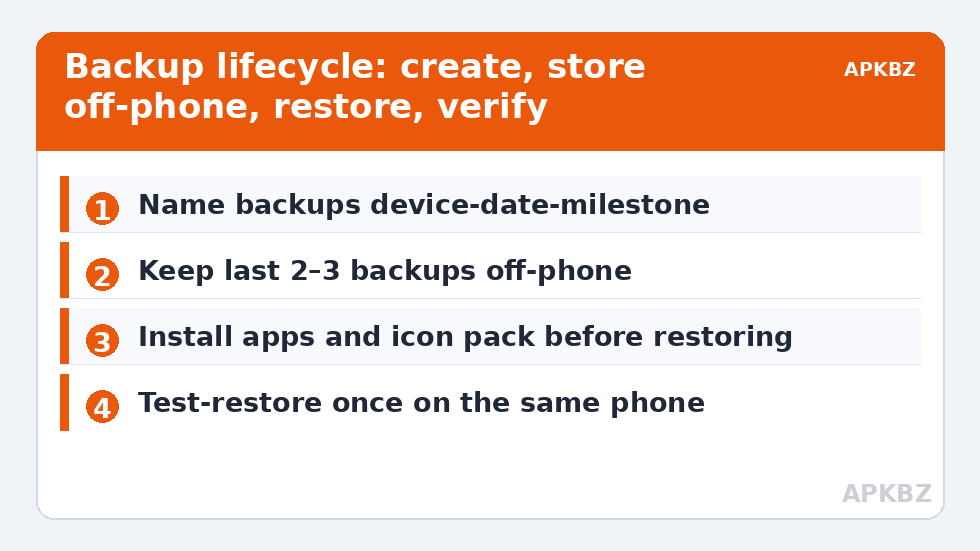
- Create a new backup and give it a recognisable name if prompted — include the date or the phone model (“Pixel-8-October” ages better than “backup3”).
- Now the step everyone skips: move a copy off the phone. A backup stored only in the phone’s internal storage dies with the phone, which is the exact scenario it exists for. Send it to cloud storage, your PC, or a USB drive — Smart Launcher’s share/export options or any file manager can move the file.
- Keep the last two or three backups, not just the newest. If you back up a broken layout over your only good copy, you have archived the problem.
Treat these numbers as a starting point: apply them in Smart Launcher 6 under Settings → Home screen → Grid, use the layout for a day, then nudge one value at a time — your wallpaper, widget sizes and one-handed reach all shift what feels right.
Restoring on a new phone or after a reset
Install Smart Launcher on the new device first and set it as the default launcher, then install your apps — ideally all of them — before restoring the layout. Order matters: restoring into a phone that lacks half your apps produces a layout full of gaps that you then have to tidy by hand, whereas restoring onto a complete app library lands almost perfectly. Then open the backup area, point it at your backup file (copy it onto the device first if it lived in the cloud), and restore. Give the launcher a minute afterwards; widget hosts and icon packs rebind in the background. If you use an icon pack, install it before restoring too, for the same reason.
Transfers are where most restores happen, so this guide pairs with transferring layouts between phones, and the layout you are protecting was probably built with help from the minimalist layout guide — both in this site’s Layout Tweaks collection.
Post-restore checklist
| Check | What can differ | Fix |
|---|---|---|
| Flower / home icons | Placeholders for apps not yet installed | Install the missing apps; placeholders resolve or can be re-pointed |
| Widgets | Widget shows setup screen or stale data | Open the widget’s app once and re-grant location/account; re-add the widget if it never binds |
| Icon pack | Some icons fall back to stock | Reapply the pack; per-icon choices restore once the pack is present |
| Categories | New pre-installed apps from the new phone’s brand appear uncategorised | One filing pass; hide the new bloat |
| Gestures | Assignments present but a gesture opens nothing | Re-select the target app/action in gesture settings |
| Permissions | Notification badges, wallpaper or contacts features silent | Re-grant Smart Launcher’s permissions in Android settings — restores do not carry permissions |
A backup cadence that survives real life
Back up at three triggers: after any deliberate layout session (you changed things and like the result), before a major Android update, and before handing the phone for repair or travel-risk situations. The file is tiny; there is no storage argument against keeping a rolling set. Power users who run the same layout philosophy across a phone and a tablet keep separate, clearly named backups per device — restoring a phone layout onto a tablet’s wide screen is legal but ugly, and separate files prevent the mix-up. Finally, test your backup once while the stakes are zero: restore it over your current setup on the same phone. A backup you have never restored is a hypothesis, not a safety net.
Version gaps and the restores that complain
Most restores are silent successes, but two situations produce friction worth anticipating. The first is the version gap in the wrong direction: a backup written by a much newer Smart Launcher restored into an older build can fail or partially apply, because newer options have no home in the old schema. The defence is trivial — update Smart Launcher on the target device to the current release before restoring, and never keep a “frozen” old version on a new phone out of habit. The second is the corrupted or truncated file, usually the result of a backup that was moved mid-copy or stored in a cloud folder that only pretended to sync. This is the concrete reason for the rolling set of two or three backups advised earlier: when the newest file misbehaves, the previous one — a month older, a layout iteration behind — restores fine, and an almost-current layout beats a perfect one that no longer exists. If a restore ever leaves your layout half-applied, do not start hand-fixing: re-run the restore once (the process is idempotent in effect — positions simply re-apply), and only then tidy what remains. Hand-fixing a half-restored layout builds on sand.
A naming and rotation scheme that future-you will thank you for
Backup files fail socially more often than technically: a folder called “backups” containing nine files called “backup” is a drawer of unlabelled keys. Adopt a scheme and never deviate: device–date–milestone, as in “Pixel8–2026-10–pre-update” or “Fold6–2026-11–new-layout-final”. Keep the newest three per device in one cloud folder, delete the rest without ceremony, and pin a note in the folder readme (a one-line text file) saying which file is the known-good restore you have actually tested. The milestone word matters most — it records why this moment deserved a backup, which is the only question you will ask when choosing one under stress, phone in hand, shop assistant waiting. Five seconds of naming discipline at creation buys a calm minute at restoration, and calm minutes are the entire product a backup sells.
Frequently Asked Questions
Where does Smart Launcher store its backup file?
The backup is created through Smart Launcher Settings in the Backup/Restore area, and the file can be exported or shared from there. Wherever it lands initially, copy it off the phone — cloud storage or a PC — because a backup that only exists on the device cannot help if the device is lost or reset.
Does the backup include my apps and their data?
No. It saves the launcher’s configuration: layout, categories, icon choices, theme and gestures. Your apps must be installed separately on the new device, and each app’s own data follows that app’s own backup story, not the launcher’s.
Why are some icons placeholders after I restore?
Placeholders mark layout positions whose apps are not installed yet. Install the missing apps and the positions resolve; install apps before restoring next time and the restore will land almost perfectly.
Can I restore a backup from an older Smart Launcher version?
Generally yes — Smart Launcher migrates older backup formats forward. Restoring a much newer backup into a very old version is the risky direction, so keep the app updated on the target device before restoring.
How often should I back up my layout?
After every layout change you are happy with, before major Android updates, and before repairs or risky travel. Keep the last two or three backups rather than a single copy, and store them off the phone.