A tablet launcher faces the opposite problem of a phone launcher: not scarcity of space, but waste of it. Install Smart Launcher on a 10-inch tablet with phone habits intact and you get a giant phone home screen — huge icons marooned in a grid designed for a 6-inch slab. Learning to configure tablet mode grid layouts on Android tablets with Smart Launcher is about reclaiming that width: more columns, widget real estate that earns its size, and a composition that treats landscape as the primary orientation. This guide walks through grid sizing, widget strategy, the Smart Launcher specifics that differ from phones, and living with the same launcher across both device classes.
How Smart Launcher behaves on large screens
Smart Launcher adapts to the larger canvas by expanding its drawer pages and home layout, and the same account of settings applies — but the proportions change the right answers. The category drawer becomes genuinely browsable: the category bar plus a wide page of icons lets you scan forty apps at once instead of twelve. The home screen, whether Flower-based or grid-based in your version and configuration, needs deliberate scaling or everything simply inflates. Smart Launcher does not have a single switch labelled “tablet mode” on most builds; tablet behaviour emerges from grid dimensions, icon size and the layout choices below. Set them with the tablet on a stand in landscape, at the distance you actually use it — armchair distance is further than phone distance, and icon sizes that look cartoonish up close read perfectly from a metre away.
Configure tablet mode grid: Smart Launcher dimensions that work
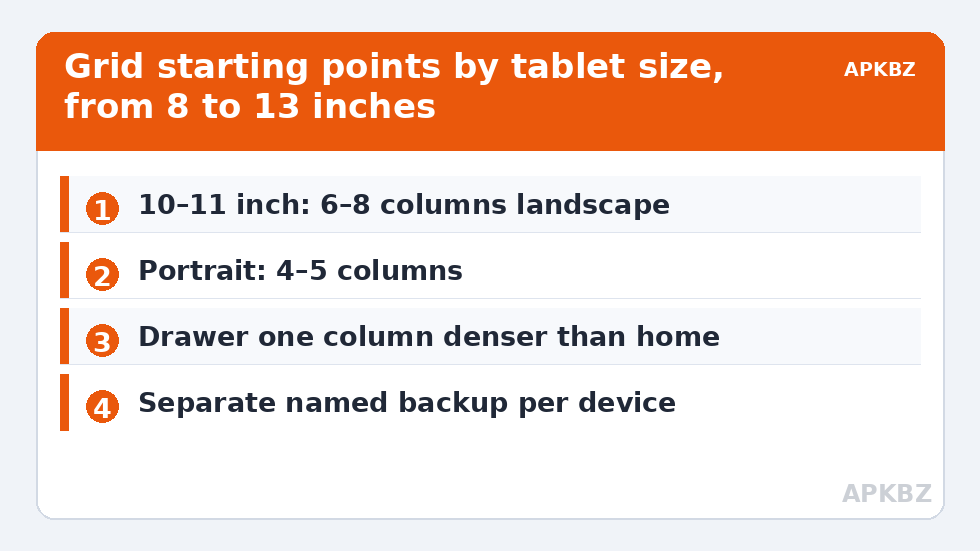
On a typical 10–11 inch tablet in landscape, home grid thinking runs like this:
- Columns: 6–8 in landscape (versus 4–5 on a phone). Below 6, icons balloon; above 8, tap targets shrink towards phone size and waste the panel’s advantage.
- Rows: 4–5 visible rows keeps everything reachable without the screen feeling like a spreadsheet.
- Drawer grid: one column denser than the home grid is fine — browsing tolerates density that tapping at speed does not.
- Icon size: resist shrinking icons just because you can fit more. The tablet’s gift is big, confident targets; spend the space on that and on widgets, not on cramming.
If your version swaps grid dimensions automatically between portrait and landscape, set both orientations deliberately — portrait on a tablet is the reading-and-browsing pose and deserves its own sane column count rather than a stretched landscape compromise.
Treat these numbers as a starting point: apply them in Smart Launcher 6 under Settings → Home screen → Grid, use the layout for a day, then nudge one value at a time — your wallpaper, widget sizes and one-handed reach all shift what feels right.
Widgets: the reason tablets exist
Widgets graduate on tablets from glanceable garnish to genuine furniture. A Smart Widget stack still makes sense for clock/weather/agenda, but a tablet home can also carry a full-width calendar month view, a proper music player, a photo frame or a notes widget at sizes that are parodies of themselves on phones. The layout pattern that works: one anchor widget stack in the upper-left (where reading eyes start), one wide informational widget beneath or beside it, and apps occupying the remaining field. Keep total widget count low — three major widget presences is a composed tablet screen; eight is a phone user’s insecurity scaled up. Our phone-focused widget stacking guide covers stack mechanics, and this article’s series home, Layout Tweaks, holds the foldable companion piece — foldable layouts — whose inner-display advice is this guide’s close cousin.
Suggested grid starting points
| Device | Home grid (landscape) | Drawer columns | Orientation note |
|---|---|---|---|
| 8″ tablet | 5–6 columns × 4 rows | 6 | Large-phone thinking still mostly works |
| 10–11″ tablet | 6–8 columns × 4–5 rows | 7–8 | Design landscape-first |
| 12–13″ tablet | 8 columns × 5 rows | 8–9 | Consider a two-zone composition (widgets left, apps right) |
| Foldable inner display (~7.6″) | 5–6 columns × 4 rows | 6 | Near-square ratio; see the foldable guide |
| Smart display / TV-adjacent panel | Fewer, larger — 4–5 columns | 5 | Viewing distance rules everything; maximise target size |
Shared account, separate layouts
If you run Smart Launcher on both phone and tablet, keep their backups separate and named per device. A phone layout restored onto a tablet technically works and visually fails — the grid proportions are wrong for the canvas and you will spend longer fixing it than building fresh. Build the tablet layout natively on the tablet, export its own backup, and let the two devices share only philosophy: same categories corrected the same way, same icon pack family, same wallpaper taste. Category corrections are worth duplicating manually once; after that, the tablet’s app library diverges from the phone’s (more readers, video and creativity apps; fewer utilities of daily carry) and its drawer should be allowed to follow its own life.
Input changes everything: stylus, keyboard and couch distance
Tablets are used with more input methods than any phone, and each one argues for a different layout. A stylus is precise — it tolerates, and rewards, the denser end of the grid ranges in the table above, and it makes small widget controls usable that fingers would fumble. A keyboard-and-trackpad case turns the tablet into a laptop posture: here the home screen matters less (you live in apps), but a composed, uncrowded layout still pays off in the alt-tab moments, and large click targets forgive trackpad sloppiness. The couch scenario is the opposite pole: tablet held at full arm’s length or propped on a coffee table, driven by occasional reaches — this is the use that justifies the biggest icons and the most generous spacing, and the reason a media tablet’s layout should be designed from the sofa, not the desk. If your tablet serves all three lives, favour the finger-and-couch settings as the baseline and let the stylus enjoy the extra precision for free; designing for the least precise input you regularly use is the rule that keeps a shared device feeling right in every hand and every posture.
Portrait deserves its own pass
Most tablet guidance, this guide included, leads with landscape because that is where tablets do their distinctive work — but portrait is where they do their reading, and a layout tuned only for landscape often strands the portrait experience. Dedicate ten minutes to the tall orientation after the landscape composition settles. In portrait, the tablet behaves like a grand phone: fewer columns read better (four to five), the widget stack should narrow to its most glanceable members rather than stretching its landscape footprint, and the category drawer becomes a genuinely pleasurable browse because the pages gain depth instead of width. If your Smart Launcher build maintains grid settings per orientation, set them independently and deliberately; if it derives one from the other, choose the derivation that privileges whichever orientation you use for your single most common tablet task. The mistake to avoid is treating portrait as landscape’s leftover — for readers, note-takers and comic readers, portrait is the tablet, and it deserves first-class numbers.
Frequently Asked Questions
Is there a tablet mode switch in Smart Launcher 6?
On most builds there is no single “tablet mode” toggle. Tablet behaviour comes from the grid dimensions, icon size and layout choices, which Smart Launcher scales to the larger screen. Set columns, rows and icon sizes deliberately for the big canvas rather than accepting phone proportions.
How many columns should a 10-inch tablet home screen have?
Six to eight columns in landscape is the practical range, with four to five rows. Fewer makes icons balloon; more shrinks tap targets back to phone size and wastes the tablet’s main advantage.
Should I restore my phone’s Smart Launcher backup onto my tablet?
You can, but it rarely looks right — phone proportions on a tablet canvas need extensive fixing. Build the tablet layout on the tablet and keep separate, clearly named backups per device.
Why do widgets look stretched or tiny on my tablet?
Many third-party widgets are designed for phone cells and scale poorly. Resize them generously, prefer widgets with true tablet layouts, and lean on Smart Launcher’s own widgets, which adapt cleanly to large footprints.
Does the category drawer work well on tablets?
Yes — it is one of Smart Launcher’s strengths on large screens. The category bar plus a wide icon page lets you scan far more apps at once than on a phone, making the drawer a real browsing surface rather than a fallback.