An app label is the least designed text on your phone. It arrives with the app’s marketing name — too long (“Smart Launcher 6 – Home Screen” energy), inconsistently capitalised, sometimes localised into something you would never say aloud — and sits under the icon forever. To edit app labels and hide text under icons in a launcher is the cheapest customisation there is: no packs, no images, just decisions about words. Done thoughtfully, renamed labels (“Mail”, “Maps”, “Bank”) make a screen scannable in the way its owner actually thinks, and hidden labels let strong iconography speak alone. Done carelessly, you get a beautiful grid you cannot navigate. This guide covers both moves in Smart Launcher 6, with the judgement to know which apps deserve which treatment.
Edit app labels and hide text under icons: what a launcher rename really is
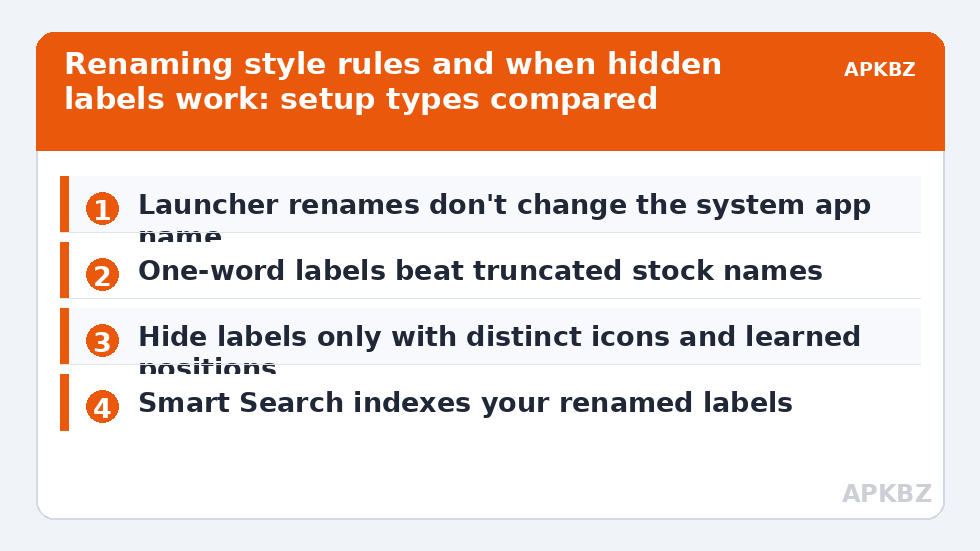
When you rename an app in Smart Launcher, you are editing the launcher’s shortcut label, not the app itself. The app’s real name stays untouched in Settings, in the Play Store, and in system dialogs; only the launcher’s surfaces — home screen, drawer, categories, search — use your word. That separation is liberating: you can fix names without consequences. It also explains the two places your rename will not follow you: a fresh install of the launcher shows stock names until restored from backup, and voice assistants and system share sheets keep using the real names, so do not rename anything into a word you would be embarrassed to say to Google Assistant. To rename, long-press the app in Smart Launcher and choose the edit option; the label field sits with the icon editor — the same workflow as customizing individual icons, and you can change word and picture in one visit.
A renaming style guide, because consistency is the whole game
- One word beats two. “Play Store” becomes “Store”; “Google Photos” becomes “Photos”. The icon already carries the brand.
- Verbs for actions, nouns for places. Apps you do things with read well as verbs (“Write”, “Ride”), destinations as nouns. Most people just use the plain noun for everything — consistency matters more than cleverness.
- Match your spoken names. Name the app what you call it. If everyone in your house calls it “the bank app”, the label “Bank” will outperform the bank’s actual brand name.
- Shorten, never abbreviate cryptically. “YT Studio” is fine because you know it; “YTS” home-made acronyms age badly and confuse future-you.
- Keep work apps literal. If IT named it, keep something close — you want to find “Intune” when a help page tells you to open Intune.
Hiding labels entirely: when text earns its removal
Smart Launcher’s icon appearance settings include label visibility for its surfaces. Hiding labels removes the last visual noise from the grid and is the finishing step of most monochrome and minimal setups. The honest conditions for success: your icons must be mutually distinguishable (a strong pack or converted set), your top apps must live in learned positions, and you must be the phone’s only regular user. Labels are also an accessibility feature — for shared phones, older users, or anyone still learning their library, text-on is the kind choice, and there is no design award worth another person’s confusion. A middle path many people miss: labels off on the home screen (curated, familiar apps) and on in the drawer/categories (the long tail you browse by name). Where a build ties the toggle globally, weigh which surface you use more and set it for that one.
| Setup | Labels on | Labels off |
|---|---|---|
| Full-colour detailed pack | Safe default; aids the long tail | Works if positions are learned |
| Monochrome / line icons | Recommended during learning weeks | The classic minimal look; search becomes primary |
| Photo/custom icons | Helps disambiguate similar faces | Only for a handful of dock icons |
| Shared/family phone | Strongly recommended | Avoid — others rely on names |
| Large icon size, few columns | Fits comfortably | Very clean; grid reads like a poster |
Treat these numbers as a starting point: apply them in Smart Launcher 6 under Settings → Home screen → Grid, use the layout for a day, then nudge one value at a time — your wallpaper, widget sizes and one-handed reach all shift what feels right.
Truncation, two-line labels, and spacing realities
Labels you keep will be truncated by the grid: a long name is ellipsised to fit its cell, which is another argument for renaming — your short word replaces the system’s apologetic “Smart Laun…”. Grid density controls how much text fits; more columns mean narrower cells and harsher truncation, one of the quiet inputs to layout planning across this Icon Customization library. If a label matters and still truncates, the fix order is: shorten the word, then widen the layout (fewer columns or a touch more cell padding), and only then consider smaller label text if your build offers it — shrinking type to rescue a long name trades everyone’s readability for one app’s vanity.
Labels inside category pages do quiet organising work
Smart Launcher’s category pages sort your library automatically, and in those pages labels carry more weight than on your curated home screen: you browse categories precisely when you do not remember where something lives, and you browse by reading. This is why blanket label-hiding disappoints some people — they tuned the setting for the home screen’s looks and quietly sabotaged their own drawer habits. Before hiding anything, spend a day noticing which surface you actually launch from. Home-screen-first users can hide labels nearly free; drawer-first users should keep them and seek their minimalism elsewhere — icon style, spacing, wallpaper. The label setting is one lever; the skill is knowing which of your habits it touches. And when you rename inside categories, prefer the app’s recognisable core name over jokes: future-you, searching a Finance category during a stressful phone call with the bank, wants “Bank”, not a punchline from six months ago.
Search forgives everything
The safety net under all label minimalism is Smart Search. Whether an app is renamed, unlabelled, or buried three categories deep, typing its (real or renamed) name finds it instantly. People who hide labels almost always become search-first users, and that is a fine destination: recognition grids are for the dozen apps you open daily, search is for the other two hundred. Set up your labels for the dozen, and let search carry the rest.
Keep a tiny note — in your backup folder, or a note app — listing your non-obvious renames. Six months and one phone migration later, “Vault” will not explain itself, and the note turns a mystery back into a system. Documentation is the unglamorous half of every durable setup.
Frequently Asked Questions
Does renaming an app in Smart Launcher change its name everywhere?
No. The rename applies to Smart Launcher’s surfaces — home screen, drawer, categories, and search. The app keeps its real name in Settings, the Play Store, share sheets, and system dialogs. This is deliberate: the launcher label is your personal shorthand, not a system change.
How do I hide the text under icons in Smart Launcher 6?
Open Smart Launcher settings and look in the icon appearance / home screen area for the icon labels toggle (wording varies slightly between versions). Turning labels off removes text under icons on the launcher’s surfaces. Many users hide them on the home screen for a clean grid while keeping names visible where they browse.
Will hiding labels make my phone harder to use?
For the first days, slightly — you navigate by icon and position instead of reading. If your icons are distinct and your main apps stay in fixed places, the adjustment is quick. On shared phones or for users who rely on names, keep labels on; clarity beats minimalism when someone else needs to find the phone app fast.
My app names are cut off with “…” — how do I fix that?
Rename them shorter in the launcher’s edit screen; your word replaces the truncated stock name. If several names still truncate, your grid is dense relative to label length — fewer columns or slightly larger cells give text room. Renaming is the better first fix because it also makes names match how you actually refer to apps.
Do renamed labels appear in Smart Search results?
Yes — Smart Search indexes the launcher’s labels, so your renamed apps are findable by the name you gave them. This is what makes aggressive renaming and hidden labels safe in practice: even if you forget where an app lives visually, its name, as you chose it, still retrieves it.