
Few launcher faults feel as personal as unlocking your phone after a restart and finding gaps where your most-used icons used to sit. The apps are usually still installed, your data is safe, and nothing you did the night before explains the empty spaces. In Smart Launcher 6 this problem almost always comes down to timing: something the launcher needed at boot — an app, a storage volume, or its own saved layout — was not ready when it first drew the home screen, so it drew a screen without those items. Work through the diagnosis below before rebuilding anything, because putting icons back by hand treats the symptom and the next reboot will often undo your work. If you are new to this site, start from our APKBZ home page for the wider Smart Launcher guides.
First, work out what kind of disappearance this is
Reboot once more, wait a full two minutes after the lock screen appears, and only then judge the result. Android starts services in stages, and a launcher that appears early can still be waiting for app inventories, icon packs and mounted storage. Then check three places in order. First, open the app drawer: if the missing apps are there, they are installed and only their home-screen shortcuts are gone. Second, open Settings > Apps and confirm the apps show as installed for the current user. Third, note the pattern. Icons missing in a neat group often shared a page, a folder or a storage location. One or two random icons point elsewhere, usually to an app update that changed its component name while you were away.
The pattern matters because the fixes are different. A whole page missing suggests the launcher loaded an older or partial layout. Apps installed on an SD card vanishing suggests the card mounted late. Icons that disappear only after system updates suggest the update cleared a cache or changed how an app reports itself. Write down which icons vanished and whether they return on their own after a few minutes. That small record turns a frustrating mystery into a testable problem, and it stops you applying five fixes at once and never learning which one worked.
Cause 1: apps on an SD card that mounts too late
This is the classic cause, and it is worth ruling out first. When Android boots, adopted or portable SD storage is verified before it becomes available. If Smart Launcher draws the home screen before that check finishes, shortcuts pointing at card-stored apps can be dropped from the layout because, at that moment, the apps genuinely do not exist from the launcher’s point of view. Some builds restore them when the card arrives; others treat the empty slots as the new layout and save that state.
Check where the affected apps live in Settings > Apps > the app > Storage. If the missing ones share a card, move those apps back to internal storage, reboot, and re-add one shortcut as a test. Keep the launcher itself on internal storage in all cases. Cards also age: a card that is starting to fail mounts slowly and inconsistently, which produces exactly this intermittent, never-quite-the-same-twice behaviour. If the problem follows the card to other uses, replace the card rather than fighting the launcher.
Treat these numbers as a starting point: apply them in Smart Launcher 6 under Settings → Home screen → Grid, use the layout for a day, then nudge one value at a time — your wallpaper, widget sizes and one-handed reach all shift what feels right.
Cause 2: the launcher was not ready, or not default, at boot
A launcher can only protect its layout if it is the app answering at startup. If the stock launcher briefly takes over after a reboot — after an update, for example — layouts can be viewed, altered or simply confused between two home apps. Confirm Smart Launcher is still selected in Settings > Apps > Default apps > Home app. Our guide to setting Smart Launcher 6 as the permanent default launcher covers the settings that keep revoking that choice. Also give the phone an unhurried first unlock: unlocking instantly and swiping around while first-boot work is still running occasionally catches the launcher mid-load, especially on budget hardware.
Cause 3: a stale inventory or a damaged icon cache
Smart Launcher keeps an inventory of installed apps and a cache of rendered icons. If an app updated overnight — changing its launch component, label or icon — the saved shortcut can point at something that no longer quite exists. The drawer, which rebuilds from the live inventory, shows the app correctly, while the old home-screen shortcut fails and may be removed. This is why a single recently updated app is a different story from a whole page of losses. Removing the broken shortcut and dragging the app out fresh from the drawer creates a new, correct shortcut. If many icons look wrong at once, a single careful cache clear can force a rebuild; our separate advice on the difference between cache and data matters here, because Clear data would remove the very layout you are trying to save.
The fix sequence, in the order to try it
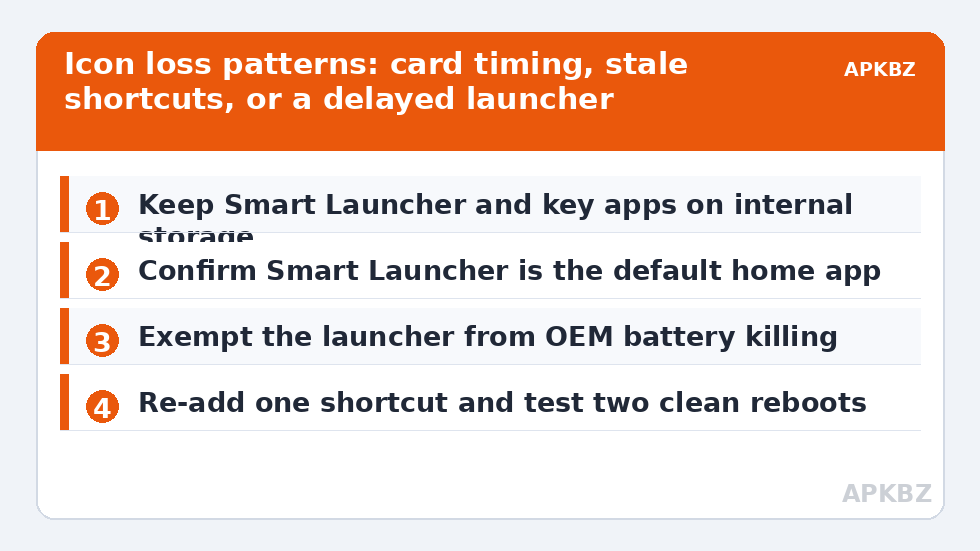
- Wait and reboot cleanly. Restart, leave the phone locked for a minute, unlock, and wait again before deciding icons are truly gone.
- Confirm the default launcher. Re-select Smart Launcher as the home app if an update has changed it.
- Move affected apps off the SD card. Prioritise any app whose shortcut keeps vanishing, plus Smart Launcher itself.
- Re-add one shortcut and test. Drag one missing app from the drawer, reboot, and see whether it survives before rebuilding the rest.
- Exempt the launcher from battery killing. A launcher that is frozen or delayed at boot cannot load reliably; the timing problem is similar to the one behind widget loading delays after a reboot, and the exemption work overlaps.
- Export a backup once it works. The moment your layout is complete again, export a Smart Launcher backup to a folder outside the app, so a repeat costs minutes instead of an evening.
Notice what is not on that list: reinstalling. A reinstall done before you know whether storage, defaults or timing caused the loss usually reproduces the same loss on the next boot, because none of those causes live inside the launcher’s installation. Diagnose first, rebuild once, back up immediately — in that order.
Protecting the rebuilt layout
Once the test shortcut survives two consecutive reboots, rebuild the rest of the screen and then protect it. Turn on any layout-lock option you use only after the rebuild is finished, so you do not lock in a half-repaired state. Keep a recent backup after any big rearrangement, not just after a repair. If icons vanish again, compare against your written record: the same apps again points back to storage or to those apps updating; different apps each time points more strongly to the launcher being delayed or killed at boot. Two related repairs in this batch may help next: if the losses started after an update, read about fixing a home screen grid that resets after an update, and if pictures rather than icons are misbehaving, see fixing wallpaper that reverts to default after every reboot.
| Pattern you see | Most likely cause | First move |
|---|---|---|
| Same card-stored apps vanish | SD card mounts late | Move those apps to internal storage |
| One app vanished after its update | Shortcut points at an old component | Delete shortcut, drag a fresh one from the drawer |
| Whole page or layout missing | Launcher delayed, not default, or layout loaded partially | Check default home app and battery exemption |
| Different icons each reboot | Failing card or launcher being killed at boot | Test without the card; exempt the launcher |
None of this requires exotic tools. It requires resisting the urge to rebuild everything in the first five minutes, when the phone has not yet told you why the icons left.
Frequently Asked Questions
Are my apps deleted when their icons disappear?
Almost never. Check the app drawer and Settings > Apps first: in most cases the app is fully installed and only its home-screen shortcut was dropped during boot. Re-adding the shortcut from the drawer restores the icon without reinstalling anything.
Why do the same icons disappear after every reboot?
Repetition points to a timing cause, most often apps stored on an SD card that mounts after the launcher draws the home screen, or the launcher itself being delayed by battery management. Move the affected apps to internal storage and exempt Smart Launcher from battery optimisation, then test with two clean reboots.
Will clearing Smart Launcher’s data bring my icons back?
No — it does the opposite. Clear data removes the saved layout you are trying to recover. Clear cache is the safe option because it only removes rendered images the launcher rebuilds. Always export a backup before touching data.
How can I stop this happening again?
Keep Smart Launcher and your most-used apps on internal storage, keep the launcher set as the default home app, exempt it from OEM battery killing, and export a fresh backup whenever your layout is complete. Those four habits prevent the great majority of repeat cases.


