A foldable phone is two devices arguing about one home screen: a narrow cover display you use one-handed on the street, and a near-square inner panel that wants to be a small tablet. Most launchers pick one personality and abandon the other. Getting foldable screen layouts in Smart Launcher 6 that feel right on both surfaces means you have to configure each display deliberately — separate grid thinking for each panel, honest expectations about which elements carry over, and a drawer strategy that exploits the extra width instead of merely stretching. This guide works through the cover screen first, then the inner display, then the transition between them.
Configure foldable screen layouts Smart Launcher 6: how it treats two displays
Android reports the foldable’s two panels as different display configurations, and launchers respond to the change by re-laying out the home screen. Smart Launcher adapts its grid and element sizes when the configuration changes, but your layout choices — which apps sit in the Flower or home rows, your widget stack, your categories — are shared across both screens. That is the central design tension: a composition tuned for a 7.6-inch inner display will breathe on the cover screen, and a cover-tuned screen looks sparse unfolded. In practice the inner display should lead your design decisions, because it is where you deliberately sit down to use the phone as a tablet; the cover screen gets a reach-optimised subset behaviour automatically, mostly through the Flower’s bottom-arc arrangement.
Cover screen: reach and density discipline
Cover displays on book-style foldables are tall and narrow — typically close to a normal phone’s ratio but slimmer — while flip-style foldables have tiny cover panels where Smart Launcher may not even be the surface you interact with (flip cover screens run the OEM’s own widget layer, and Smart Launcher governs the inner phone display only). For book-style cover screens:
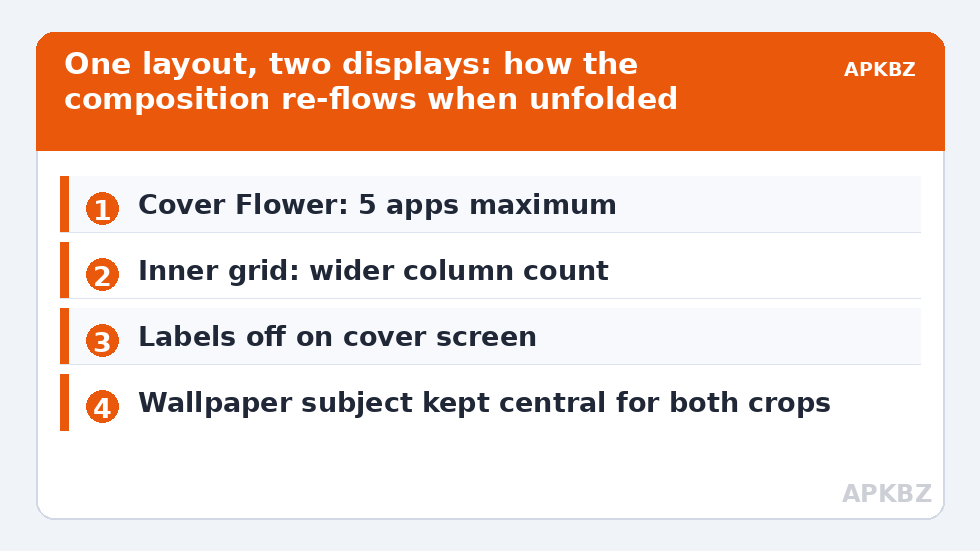
- Keep the Flower small: five apps maximum. On a narrow screen a large Flower crowd the lower third and collides with the clock widget.
- Clock widget compact: choose the smaller clock style; the tall aspect amplifies any widget’s vertical footprint.
- Labels off on the home screen to prevent truncation on narrow columns.
- Rely on Smart Search: one-handed cover use is exactly the swipe-and-type scenario Smart Search exists for.
Treat these numbers as a starting point: apply them in Smart Launcher 6 under Settings → Home screen → Grid, use the layout for a day, then nudge one value at a time — your wallpaper, widget sizes and one-handed reach all shift what feels right.
Inner display: think in columns, not bigger phone
The unfolded panel rewards a tablet mindset. Where your version exposes grid controls for the home layout, widen the column count on the inner display so widgets and the widget stack can sit beside each other rather than stacked vertically. A productive inner layout many owners settle on: left column carries the Smart Widget stack (clock, weather, agenda), right side holds the Flower expanded or a modest grid of work apps, and the drawer categories make use of the width by showing more icons per row. Compare this with the dedicated tablet guidance in configuring tablet mode grids — the inner display of a foldable is a tablet that happens to fold, and most of that advice transfers directly.
The category drawer deserves special mention on foldables: with the category bar along one edge and a wide page beside it, browsing categories on the inner display is genuinely faster than on any phone. If you have never reviewed your filing since buying the foldable, the category page setup guide in this Layout Tweaks series is worth the ten minutes.
Layout decisions by display
| Element | Cover screen | Inner display |
|---|---|---|
| Flower / favourite apps | 5 maximum, reach-first choices | Up to 7, or a small grid block |
| Widgets | Compact clock only | Full Smart Widget stack |
| Home pages | Single page | Single page with wider composition |
| Icon labels | Off (narrow columns) | Optional — width allows them |
| Primary app finding | Smart Search | Category drawer browsing |
| Wallpaper | Same image, checked cropped both ways | Check the centre crease area stays calm |
The fold transition: what to check
Open and close the phone slowly a few times after any layout change and watch for three glitches. First, widgets that resize with a visible jump or lose their internal layout — usually a third-party widget that does not handle configuration changes gracefully; Smart Launcher’s own widgets handle the fold cleanly. Second, wallpaper cropping: pick images whose subject survives both a tall-narrow crop and a near-square crop, or the inner display will decapitate your portrait. Third, the crease: avoid placing the clock or a widget’s key text exactly where the fold falls on your model, because glare on the crease makes centred text the hardest to read outdoors. Ambient theming samples the wallpaper per configuration, so expect the derived palette to shift subtly between folded and unfolded if the crops expose different dominant colours — normal behaviour, not a bug.
Continuity with apps, and honest limits
Remember that the launcher only controls the home surface. Apps themselves decide whether they relay out gracefully when you unfold mid-session, and Smart Launcher cannot fix an app that restarts on fold. Where Android’s taskbar appears on large screens, it coexists with the launcher rather than replacing it; some owners disable the taskbar for a cleaner Smart Launcher composition, others keep it for split-screen launching. Try both for a week. Finally, temper expectations on flip phones: if your device is a flip-style foldable, nearly all of this guide applies to the main inner display, and the tiny outer screen remains the manufacturer’s playground.
Flex mode, tabletop use and the half-folded screen
Book-style foldables spend a surprising amount of life half-open: propped on a desk for a video call, tented on a kitchen counter for a recipe, or L-shaped on a nightstand as an alarm clock. The launcher’s role in these poses is mostly to stay out of the way, but two choices help. First, if you use the phone as a nightstand clock, the clock widget in your home composition is what the half-folded screen showcases — choose a style that remains legible at a shallow angle and low brightness, which usually means the bolder digital styles rather than the hairline ones. Second, expect some apps launched from the half-folded state to open in their posture-aware layouts (camera and video apps especially); that is the apps’ flex-mode behaviour, not the launcher’s, and Smart Launcher simply hands over correctly. What the launcher must not do — and on current versions does not — is rearrange your grid merely because the device is half-folded: posture changes are transient, and your layout rightly treats only the full open/close configuration change as a layout event.
One more surface: the cover screen’s glance economy
Cover screens reward a different discipline from everything above: they are glance machines. Walking directions, a boarding pass, the next calendar item, a music skip — the cover display serves ten-second interactions, and your launcher composition should honour that brevity. This is the deeper reason for keeping its Flower tiny and its widget singular: every element on that narrow panel is either serving a ten-second job or taxing one. Audit the cover composition by asking of each item, “have I used this one-handed, mid-stride, this week?” The survivors will be few, obvious, and exactly right.
Frequently Asked Questions
Does Smart Launcher 6 support foldable phones?
Yes, Smart Launcher runs on book-style foldables and adapts its layout when the display configuration changes between the cover and inner screens. The same layout and categories are shared across both, so design primarily for the inner display and keep the cover composition reach-friendly.
Can I have completely different home screens on the cover and inner displays?
Not as separate saved layouts in Smart Launcher — the configuration is shared, and the launcher re-flows it for each screen size. You can influence the result with grid and sizing choices, but two fully independent layouts are beyond what the launcher offers.
Why does my wallpaper look wrong on one of the screens?
The two displays have very different aspect ratios, so one image is cropped two ways. Choose wallpapers whose subject sits centrally with margin around it, and check both the folded and unfolded previews before settling.
Do widgets survive folding and unfolding?
Smart Launcher’s own widgets handle the transition cleanly. Some third-party widgets redraw or briefly lose their layout because the app behind them handles configuration changes poorly — replacing that widget is usually the only real fix.
Should I use the Android taskbar on my foldable with Smart Launcher?
It is a matter of taste: the taskbar speeds up split-screen multitasking, while disabling it gives Smart Launcher’s home composition a cleaner look. The launcher works correctly either way on current Android versions.