Curved-edge OLED screens look stunning in the shop and quietly sabotage home screens at home: icons in the outer columns sit half on the falling edge, labels clip into the curve, and taps near the glass bend feel like they land through water. The fix is rarely a new launcher — it is margin. Knowing how to adjust grid alignment and padding for curved OLED displays in Smart Launcher turns a screen that fights your layout into one that frames it. This guide explains why edge columns misbehave, how Smart Launcher’s grid and padding controls solve it, and how to calibrate by eye in about five minutes.
Why curved edges break grids
A launcher grid is a rectangle; a curved display’s usable flat area is a narrower rectangle inside it. Icons placed by the grid’s geometry assume every column is equally flat and equally touchable, but the outer columns on a curved panel sit where the glass falls away. Three problems follow. Visually, icons on the fall look distorted and catch reflections differently, so a tidy row reads as sloppy. For touch, the digitiser still works on the curve but your thumb approaches at an angle, so edge targets feel less accurate. And for text, labels in edge columns are the first thing the curve bends out of comfortable reading. Aggressive curves (older waterfall displays) show all three problems strongly; the gentle 2.5D edge of most current phones shows only the label issue, and mildly.
Adjust grid alignment for a curved display: launcher levers that work
Smart Launcher’s layout controls give you two levers that matter here, wherever your version places them (home screen edit mode and the appearance/layout settings):
- Grid dimensions: the number of columns and rows on grid-based home pages and in the drawer. Fewer columns means each column is wider and its contents sit further from the edges.
- Padding / margins: the inset between the grid and the screen edges. Increasing horizontal padding pulls the entire grid inward, off the curve, at the cost of slightly smaller cells.
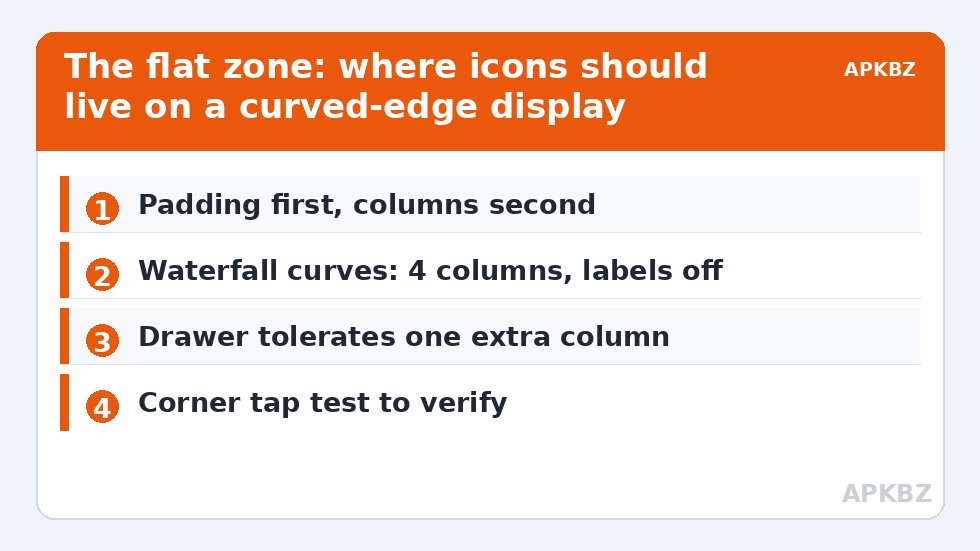
Padding is the correct first lever because it preserves your column count and icon sizes better than dropping a column does. Dropping from five columns to four on a strongly curved phone is, however, a legitimate second step — four wide, flat columns beat five columns where the outer two live on a waterfall.
Treat these numbers as a starting point: apply them in Smart Launcher 6 under Settings → Home screen → Grid, use the layout for a day, then nudge one value at a time — your wallpaper, widget sizes and one-handed reach all shift what feels right.
A five-minute calibration routine
- Open the home screen edit mode and note your current column count and padding (write them down — calibration is easier when retreat is possible).
- Increase horizontal padding in small steps. After each step, look at the outermost icons: the moment their full silhouette sits on flat glass with a finger’s width of calm space beside it, stop.
- Check labels. If edge labels still bend, either hide home screen labels (you know your own icons) or drop one column.
- Check touch: open the four corner-most apps ten times each at natural speed. Any repeated misses mean the grid is still too wide — add padding.
- Apply the same thinking to the drawer grid, which usually tolerates one more column than the home screen because browsing is slower and more deliberate than home screen tapping.
The same calibration logic underlies the calculator-driven approach in our grid tool article’s companion pieces across this Layout Tweaks series, and it matters doubly on foldable layouts, where the cover screen’s narrow width amplifies every padding decision, and on tablet grids, where the problem inverts — acres of flat glass and padding that should breathe rather than protect.
Suggested starting points by display type
| Display | Home columns | Horizontal padding | Labels |
|---|---|---|---|
| Gentle 2.5D edge (most current phones) | 5 | Default or +1 step | On is fine |
| Pronounced curve ( waterfall-style) | 4 | +2 to +3 steps | Off on home screen |
| Flat OLED / flat glass | 5–6 by preference | Default | On |
| Foldable cover screen | 4 | +1 to +2 steps | Off |
| Large flat phone (6.8″+) | 5–6 | Default or +1 step | On |
These are starting points, not commandments — hand size and icon pack density move the right answer by a step in either direction, which is why the calibration routine above matters more than the table.
Icon size, padding and the density trade-off
Padding never acts alone: narrowing the grid’s field makes each cell smaller unless you also reduce columns, and smaller cells mean smaller icons. If your priority is large, glove-friendly icons on a curved phone, the honest recipe is fewer columns and modest padding, accepting a airier layout. If your priority is information density, keep columns and padding minimal and accept edge icons living partly on the curve — plenty of users do, happily, because they rarely tap those columns. Problems only arise when people expect both maximum density and perfect edge behaviour from the same glass. Pick which one the phone is for.
Accidental touches, palm rejection and living on the edge
There is a second, quieter cost to edge columns that has nothing to do with looks: grip. Holding a phone means wrapping fingers around its edges, and on aggressively curved screens those fingers rest on live glass. Android and OEM palm-rejection software filters most of it, but the failure cases cluster exactly where curved grids put icons — the outer columns at mid-height, where your holding fingers land. The symptom is distinctive: apps seem to open “by themselves” while you are reading or watching something, always from the edge positions. Before blaming a haunted phone, apply this article’s medicine — padding that pulls columns inward is simultaneously a visual fix and a grip fix, because it moves targets out of the palm’s territory. If touches still misfire, check for a screen protector whose edge lift is confusing the digitiser, and for an OEM “edge panel” feature competing for the same glass; both are common, and both masquerade as launcher misbehaviour. The calm summary: on curved phones, the edges are for looking at, the flat is for touching — set your grid to respect that division and both the visuals and the grip behave.
Measure your flat zone instead of guessing
You can replace guesswork with a thirty-second measurement. Lay a straight edge — a bank card works — across the screen’s width at mid-height and look along it: the points where the glass visibly departs from the card’s line mark where your flat zone ends. Icons should live inside those marks. A more digital method: open a plain white image full-screen and view the phone from a shallow angle; the curved regions flare with reflections noticeably earlier than the flat centre, tracing the usable area for you. Either way, once you have seen your flat zone, padding stops being an abstract slider and becomes a measurement you are matching — set the grid so its outer columns sit a few millimetres inside the line, then run the tap test from the calibration routine to confirm your thumb agrees with your eyes. Users with the same phone model will land within a step of each other; users with different curve generations will not, which is why copied settings from a forum post so often disappoint.
Frequently Asked Questions
Why do icons look distorted at the edges of my curved screen?
They are rendered on glass that is physically falling away from the flat plane, so they catch light differently and appear warped. Moving the grid inward with horizontal padding places those icons on flat glass and the distortion disappears.
Should I reduce columns or increase padding first?
Increase padding first — it preserves your layout and icon size longest. Only if edge labels still bend or edge taps still miss should you drop a column, which is the bigger structural change.
Does the drawer need the same treatment as the home screen?
Similar, but gentler. Drawer browsing is deliberate, so the drawer usually tolerates one more column than the home screen. Still add a step of padding on strongly curved phones so the outer drawer columns sit on flat glass.
Will more padding make my icons too small?
Slightly, if you keep the same column count — the same number of cells shares a narrower field. If icon size matters more than density, reduce columns at the same time; four wider columns with padding often look larger than five cramped ones.
Is this a problem on flat-screen phones too?
Much less. Flat and gently-edged phones usually need no adjustment beyond taste. This calibration earns its keep on pronounced waterfall curves and narrow foldable cover screens, where the geometry genuinely fights the grid.