Phones grew past the size where one thumb covers the screen years ago, and every launcher interaction now happens in the bottom two-thirds of the display or not at all. Learning to setup one handed mode gestures large screen devices is therefore not an accessibility niche — it is the main design problem of a modern home screen. Smart Launcher helps more than most: its search bar can sit at the bottom, its categories remove the need to reach a top drawer, and its gestures can be arranged so that nothing important requires a stretch.
This guide combines three layers: Android’s own one-handed mode (the system feature that shrinks or shifts the screen), your OEM’s reachability tricks, and a Smart Launcher layout and gesture arrangement designed around the thumb’s natural arc. None of the layers alone is sufficient; together they make a 6.8-inch phone feel like a much smaller device for the ninety percent of interactions that are one-handed.
Setup One Handed Mode Gestures: Large Screen Layer One, the System Feature
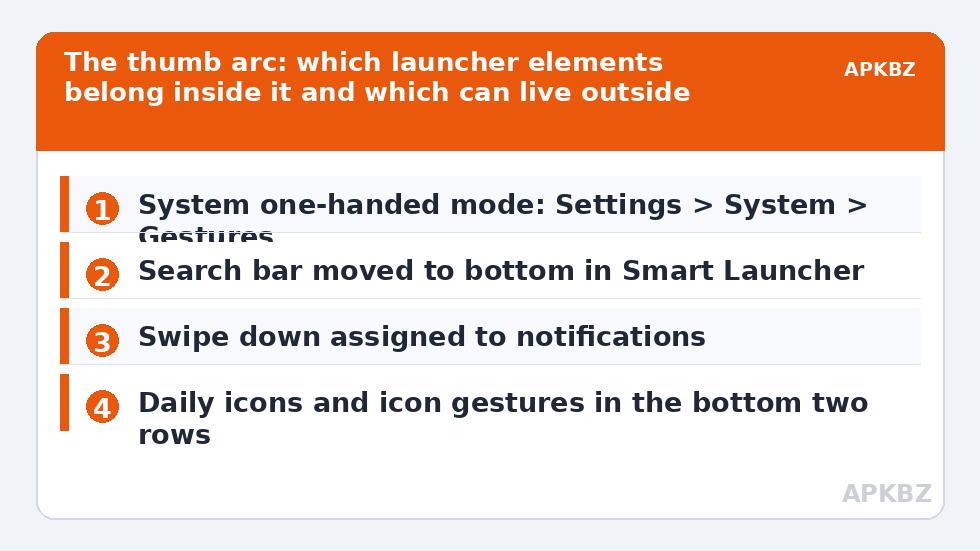
Android 12 and later include a native one-handed mode on Pixel and many other builds: Settings → System → Gestures → One-handed mode. Its pull-down variant lets a short swipe down on the gesture bar shift the whole screen’s top half downward temporarily — the single most useful gesture on a large phone, and one many users never discover. Samsung’s One UI version (Settings → Advanced features → One-handed mode) additionally offers a diagonal-corner swipe that scales the display into a smaller window you can position left or right. Xiaomi and others ship equivalents under similar names. Enable yours, pick the activation you will actually remember, and practise it inside apps, because unlike launcher gestures this one works system-wide.
| Feature | Activation (typical) | Best for |
|---|---|---|
| Pixel / stock one-handed mode | Swipe down on the gesture bar | Reaching top-of-app content quickly |
| Samsung one-handed mode | Diagonal swipe from a bottom corner, or Home triple-tap (button nav) | Sustained one-handed sessions in a shrunk window |
| OEM reachability (various) | Double-tap Home or edge pull, skin-dependent | Occasional top reach |
| Smart Launcher bottom layout | Always on | Making the home screen itself need no reaching at all |
Layer Two: A Smart Launcher Layout Built for the Thumb
- Move the search bar to the bottom in Smart Launcher’s Search bar settings. This single change relocates your most-used launcher element into the thumb zone, and pairs with the swipe-down-to-search behaviour from the search bar swipe down guide.
- Concentrate home screen content low. Keep the bottom two rows for your daily icons and loaded icon gestures; let the top of the screen hold the clock and glanceable widgets you read but rarely touch.
- Assign swipe down to notifications in Gestures and inputs, so the shade — Android’s most top-bound element — comes to the thumb instead of the reverse.
- Spend swipe up on the app page, not on an app: with categories doing the organisation, the app page becomes your everything-drawer, reachable with the easiest motion on the phone.
- Avoid edge-dependent features on the far side. If you use an edge gesture setup, put its zone on your dominant hand’s side, low, where the thumb already rests.
Treat these numbers as a starting point: apply them in Smart Launcher 6 under Settings → Home screen → Grid, use the layout for a day, then nudge one value at a time — your wallpaper, widget sizes and one-handed reach all shift what feels right.
Layer Three: Habits and Hardware Truths
Two honest notes belong in any one-handed guide. First, the grip-shift is normal: even with a perfect setup, some interactions — typing a long message, a landscape game — are two-handed activities, and designing for them otherwise produces contortions. The goal is making one-handed the default for quick interactions, not a religion. Second, cases and rings change the map: a grip ring or a wallet case shifts where your thumb naturally lands by a centimetre or more, which is enough to move the comfortable zone off your bottom icon row. After changing a case, spend one evening noticing where your thumb actually rests and nudge the layout to meet it; this five-minute recalibration is the step everyone skips and the reason many “one-handed setups” quietly stop being used.
- Left-handed users: mirror everything. Samsung’s window mode can anchor to the left; icon rows do not care which thumb arrives.
- Foldables change the problem by posture: folded, the phone is narrow and one-handed friendly; unfolded, treat it as a two-handed tablet and let the launcher layout differ by keeping unfolded content centred rather than edge-spread.
- If you use Android’s one-handed pull-down often, disable any launcher or edge tool that also claims the bottom-centre swipe area to avoid double-triggering.
Checking the Setup Against Real Life
Test with the three interactions you perform most with a coffee in the other hand: unlock and open your top app, pull notifications and act on one, and find an app you did not put on the home screen. Each should complete without a grip change. Where one fails, the failure is specific — a top-row icon, a shade pull, a search that started too high — and the fix is one of the layer-two settings above, not a new app. Users with reduced hand mobility should also explore Android’s accessibility menu and touch accommodations alongside this setup; the launcher layer complements those system tools rather than replacing them. When the layout settles, preserve it with the rest of your gestures via a configuration backup — one-handed tuning is fiddly and hard to reconstruct from memory. Category index: Gesture Setup.
The Reach Audit: Ten Minutes That Fix the Right Things
Guessing at one-handed problems produces layouts tuned for imaginary thumbs. Instead, run a ten-minute audit. Put a small sticker or a dot of removable marker at the furthest point your thumb comfortably reaches without a grip shift — on most large phones this draws a boundary surprisingly low on the screen. Now open your home screen and mark, honestly, everything you tap daily that lives above the line: typically the search bar in its top position, one or two legacy icons, and the status bar interactions. That short list is your whole problem; the rest of the screen was never an issue. Work the list with the layer-two changes — search bar down, shade on swipe down, daily icons relocated below the line — and resist redesigning anything the audit did not flag. Setups built from audits survive; setups built from vibes get rearranged weekly. Repeat the audit after changing phones or cases, since both move the boundary more than people expect.
Frequently Asked Questions
Does Smart Launcher have its own one-handed mode?
Not as a screen-shrinking feature — that belongs to Android and your OEM. Smart Launcher’s contribution is layout: a bottom search bar, category-based app access, and gestures assignable to the motions a thumb can make. Combine the system one-handed mode with a thumb-first launcher layout for the full effect.
What is the single most effective change for one-handed use?
On the launcher side, moving the search bar to the bottom and assigning swipe down to notifications. On the system side, enabling the built-in one-handed mode and learning its activation. Together they remove the two longest reaches in everyday use: search and the notification shade.
Why does my one-handed mode gesture keep triggering something else?
Because the bottom-centre swipe region is claimed by several features at once: the system’s one-handed pull-down, Android’s Home gesture, and possibly a launcher or edge tool. Remove overlaps — let the system own the gesture-bar swipe, and keep launcher gestures starting on wallpaper above the bar.
Should left-handed users set things up differently?
Yes, mirror the layout. Anchor one-handed windows to the left where the OEM allows, place any edge-gesture zone on the left side, and concentrate important icons toward the lower-left. The principles are identical; only the side changes.
Do these tips help on foldables?
Partly. Folded, a foldable is narrow and behaves like a normal phone — everything here applies. Unfolded, treat it as two-handed and focus on keeping content centred and reachable rather than chasing one-handed use across a tablet-sized canvas.