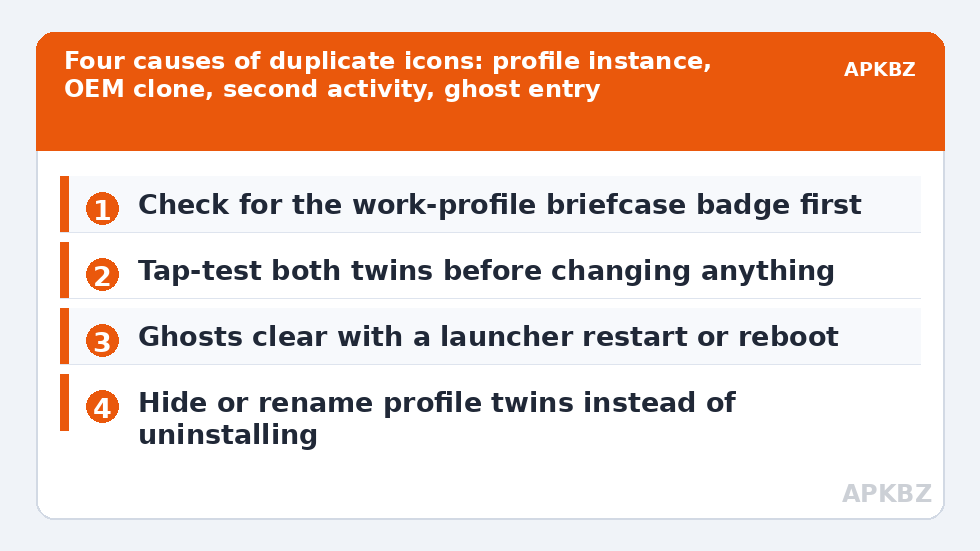
Two identical icons in the same category page is a small glitch with an outsized annoyance factor: which one is real, which one opens the app, and what happens if you delete the wrong one? To fix duplicate icons in Smart Launcher category pages, start with a calming fact — duplicates are almost never two copies of the app. A launcher displays launchable entries, and several legitimate Android mechanisms create more entries than you expect: work profiles, cloned apps, apps that declare multiple launcher activities, and stale database entries left behind by updates. Each cause has a distinct signature and a safe fix; the dangerous move is the instinctive one, long-pressing and uninstalling, because one of the “duplicates” might be the real app and the other its work-profile twin with your employer’s data expectations attached.
Fix duplicate icons in Smart Launcher category pages: diagnose first
| Cause | Tell-tale sign | What it actually is |
|---|---|---|
| Work or secondary profile | One icon carries a tiny briefcase/profile badge | The same app installed in your work profile — a separate instance with its own data |
| App cloning (OEM dual apps) | One icon has the OEM’s clone marker; both open the app with different accounts | A manufacturer cloning feature created a genuine second instance |
| Multiple launcher activities | Duplicates have slightly different names (e.g. app name vs “Camera” from the same suite) | One app legitimately exposes two entry points; both belong to it |
| Stale launcher database entry | One duplicate is greyed, broken, or does nothing / “app not found” on tap | A ghost: the app moved, updated its identity, or was uninstalled imperfectly |
Tap-test before anything else: open each twin once. A working pair that opens the same app with different accounts or data is profiles/clones. A pair where both open the identical screen identically is activities or a ghost. A twin that errors is a ghost. Identification takes a minute and decides everything downstream — including whether “fixing” is even desirable, because profile and clone duplicates are features other people depend on.
Fixing ghosts: stale entries in Smart Launcher
Ghosts arise when an app’s component identity changes under the launcher — a major update that renames its main activity, a reinstall, a restore — and the old database row survives. Smart Launcher continually syncs with the system’s package list, so true ghosts usually clear after a launcher restart or a device reboot, which forces a full re-read. If a ghost persists: check for the app in system Settings → Apps (is it installed once?), restart Smart Launcher from its settings or reboot the phone, and only then consider heavier medicine. Rebuilding by reinstalling the app (not the launcher) refreshes its component registration cleanly. Clearing Smart Launcher’s data also exorcises ghosts but at the price of your layout, categories’ customisations, and icon overrides — a last resort, taken only after exporting a Smart Launcher backup, and frankly more cost than one ghost usually justifies; hiding the ghost (below) is cheaper.
Profiles and clones: duplicates you should manage, not delete
If the badge tells you it is a work-profile instance, the fix for “my category looks duplicated” is organisational, not destructive. Smart Launcher’s categories can include or treat profile apps distinctly depending on build and settings; moving the work twin into a “Work” folder or a dedicated category keeps pages clean while the instance stays functional — uninstalling it means removing the app from your work profile, which your IT department may have opinions about. OEM clones (Dual Apps and friends) are similar: the clone is a real second installation. If you never use it, disable the clone in the OEM’s cloning settings — deleting via the launcher manages shortcuts, but the clone’s existence is owned by the manufacturer’s feature. Users of both mechanisms often actually benefit from renaming one twin (“WhatsApp” / “WhatsApp Work”) using label editing, which ends the which-is-which hesitation permanently.
Treat these numbers as a starting point: apply them in Smart Launcher 6 under Settings → Home screen → Grid, use the layout for a day, then nudge one value at a time — your wallpaper, widget sizes and one-handed reach all shift what feels right.
The legitimate cosmetic tools: hide, group, rename
For duplicates that are real but unwanted visually — a second launcher activity you never use, a profile twin — Smart Launcher offers the hide function: hidden apps leave the category pages and drawer while remaining installed and updatable, retrievable through the launcher’s hidden-apps view and always findable via Smart Search when you need them. Grouping persistent pairs into one folder with a clear cover (see folder covers) is the other tidy answer. What to avoid: “cleaner” apps promising duplicate removal — they can only uninstall things, which is how a work instance or the primary app gets destroyed by a tidy-minded tool. Everything in this diagnosis sits within normal launcher behaviour documented across the Icon Customization troubleshooting set: identify the mechanism first, then apply the smallest fix that respects it.
Duplicates in search results and on the home screen are different animals
Two places confuse the diagnosis and deserve separation. If a duplicate appears only on your home screen but once in the category page, you are looking at a shortcut, not an app entry — home screens accumulate shortcuts placed by installers (“add icon to home screen” defaults), browsers, and your own past self. Shortcuts delete freely; nothing uninstalls. If a duplicate appears in Smart Search results but not in any category, suspect an app with two searchable entry points or a search index one step behind a recent change; a launcher restart refreshes the index, and the category view — the ground truth of installed entries — is where you verify. Keep the surfaces straight in your head: categories show installed launchable entries, the home screen shows your arrangement of shortcuts and apps, search shows an index of both. A “duplicate problem” that lives on only one surface is telling you which database to blame, and each has its own scale of remedy, from deleting a shortcut (free) to rebuilding an index (a restart) to the nuclear data-clear (almost never).
Frequently Asked Questions
Why do I have two identical icons for the same app?
Usually because Android is showing you two legitimate entries: the app in your personal profile and its work-profile instance (look for a small briefcase badge), an OEM clone, or two launcher activities from one app. A rarer cause is a stale entry in the launcher’s database after an update. Tap both once and check for profile badges before changing anything.
Is it safe to delete one of the duplicate icons?
Deleting a home-screen shortcut is always safe, but “uninstalling” a duplicate may remove the real app or its work-profile instance. If one twin has a profile badge, manage it through profile settings, not deletion. If one twin is a broken ghost that errors when tapped, removing its shortcut or restarting the launcher clears it without touching the app.
How do I get rid of a ghost icon that says the app isn’t found?
Restart Smart Launcher or reboot the phone — a fresh sync with the system’s package list clears most ghosts. If it survives, reinstalling the affected app refreshes its registration. Clearing the launcher’s data also works but erases your layout; export a backup first and treat it as a last resort.
Can I hide the work-profile copy from category pages?
Yes. Use Smart Launcher’s hide-apps function for the profile instance, or gather profile apps into a dedicated Work folder/category so pages stay clean. The app remains installed in its profile, still updates, and remains reachable through search or the hidden-apps view whenever you actually need it.
Why did duplicates appear right after an app updated?
Some updates change an app’s main activity name — its identity as far as launchers are concerned. The launcher then sees the new entry while the old one lingers briefly, or a pack mapping breaks until it catches up. A launcher restart or reboot resolves the display; if a themed icon reverted at the same time, re-applying the pack refreshes the mappings.