A folder’s cover is a promise. It tells you, before you tap, what kind of thing lives inside — and on a well-organised home screen it might be the icon you look at most often. Smart Launcher gives folders two faces: the automatic stacked preview of their first few apps, and a single cover icon you choose. Most people never move past the stack. Learning how to create custom folder icons and covers on Smart Launcher 6 turns folders from visual clutter (four tiny apps in a square reads as noise at a glance) into first-class citizens of your theme, as legible and deliberate as any app icon.
Stack preview vs cover icon: what each communicates
The stacked preview shows mini versions of the folder’s first apps. It is honest and self-maintaining — add an app and the preview updates — but it has real costs: the mini icons are quarter-size, so recognisability drops; the arrangement depends on folder order, which you may sort for other reasons; and on a themed screen, four unmasked mini brand logos can look busier than any single icon. A cover icon replaces the stack with one full-size image rendered and masked exactly like a normal icon. You lose the live preview of contents and gain a calm, themed surface. Heavy folder users typically cover their top-level folders and leave deep folders stacked. There is no wrong answer, but there is a wrong default: never deciding, and letting a random first-four apps represent a folder you open twenty times a day.
Create custom folder icons in Smart Launcher 6: covers, step by step
- Make or open the folder. On the home screen, drag one app onto another to create a folder, or long-press an existing folder to reach its options. In Smart Launcher’s category pages, folders behave the same way for cover purposes.
- Open the folder and find its edit affordance. Tapping the folder’s title/name area (or the edit option in its long-press menu, wording varies slightly by 6.x build) opens folder settings, where the cover/icon choice lives alongside renaming.
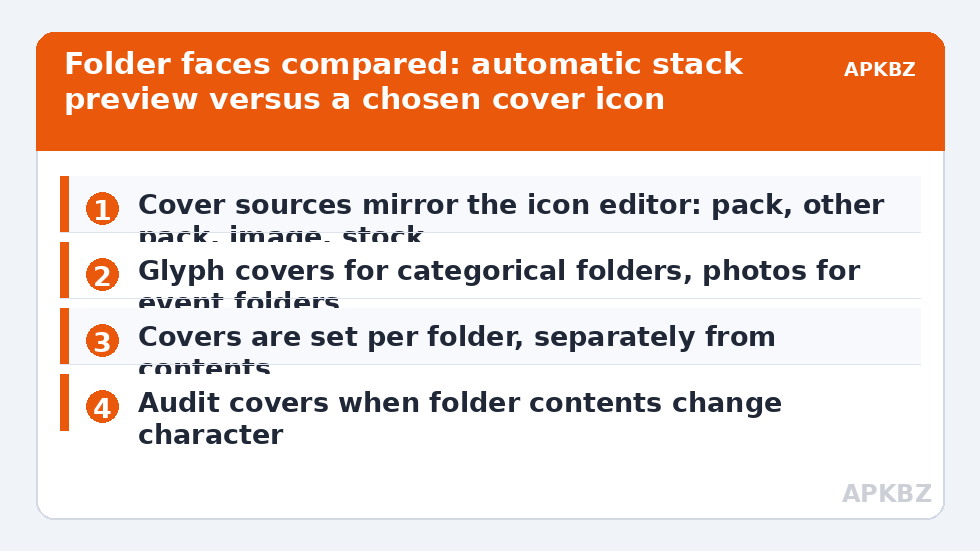
- Choose the cover source. Pick from the current icon pack (a folder glyph), another pack, the stock set, or an image from storage — the same sources as individual icon editing, because covers run through the same picker.
- Name the folder like you mean it. With a cover icon doing visual duty, the label carries the semantics: short, concrete names (“Money”, “Travel”, “Work”) beat clever ones.
- Step back and audit. View the home screen at real distance. The cover should be findable in the same half-second as your app icons; if it reads as a photo or an anomaly, simplify it.
Treat these numbers as a starting point: apply them in Smart Launcher 6 under Settings → Home screen → Grid, use the layout for a day, then nudge one value at a time — your wallpaper, widget sizes and one-handed reach all shift what feels right.
Choosing cover art that actually works
| Cover type | Best for | Failure mode |
|---|---|---|
| Pack’s folder glyph | Staying invisible inside a themed setup | Generic — several folders can end up identical |
| Representative app icon (the folder’s star app) | Folders dominated by one app, e.g. a “Games” folder ruled by one title | Misleading when the star app is removed later |
| Generic category glyph (plane, banknote, gear) | Mixed folders with a clear theme | Requires a pack with good generic glyph coverage |
| Photo or custom PNG | Personal folders: family, a project, a trip | Detail collapse at icon size — follow the custom PNG rules |
| Single letter or emoji-style monogram | Minimal setups; work/client folders | Can look like a broken icon if rendered poorly |
The consistency rule from icon editing applies double here: covers sit in the same grid as app icons, so their weight, background treatment, and style must match the surrounding set. A photographic cover among flat glyphs will draw the eye every time — fine for the one folder you want to find fastest, wrong for six folders at once.
Covers inside category pages and the dock
Smart Launcher’s automatic categories do much of most users’ organising, and folders you create on category pages accept covers the same way. Think about hierarchy: on a category page the apps are already grouped, so a folder there is a sub-group (all your banking apps inside Finance) and its cover competes with full app icons — keep it glyph-simple. If you pin folders within reach of the floating category dock, remember the dock renders icons smaller, which punishes detailed covers further; the dock-facing guidance in applying packs to the floating category dock applies to covers too. Across the wider Icon Customization collection, one principle repeats: the smaller the render, the simpler the art must be.
Cover and name work as a pair: three examples
Consider three folders on a typical screen. A “Money” folder holding two banks, a budgeting app, and a payments app: the strongest cover is the dominant bank’s icon if one app rules it, or the pack’s wallet glyph if usage is even — and the wrong cover is a photo of coins, which at 56dp reads as brown noise. A “Trip to Lisbon” folder holding maps, airline, translation, and photos: here a photo cover is perfect, because the folder is an event, not a category, and recognition is emotional and instant. A “Work” folder on a phone also used by your kids: a plain monogram cover and the exact name “Work” keep little fingers from exploring, better than any cute glyph that invites taps. The pattern: categorical folders want glyphs, event folders want pictures, sensitive folders want discretion. Run each of your folders through that one question — what kind of thing is this? — and cover choice stops being a taste dilemma and becomes a classification you already know the answer to.
Maintenance: covers after the contents change
A cover is a static promise about dynamic contents. Revisit it when the folder’s population changes character — the “Travel” folder that slowly became maps, mail, and banking is three folders wearing one trench coat, and its plane cover now lies to you daily. Every few months, open each covered folder and ask whether the cover still describes the majority inside. This tiny audit, plus renaming honestly, is most of what separates screens that stay organised for years from screens that decay into a junk drawer by spring. Smart Launcher’s backups preserve your cover choices along with the layout, so the work survives a phone change; the judgement, fortunately, transfers free of charge.
Frequently Asked Questions
What is the difference between a folder cover and the stacked preview?
The stacked preview automatically shows mini versions of the folder’s first few apps and updates as contents change. A cover icon is a single full-size image you choose — from a pack, another icon set, or your own picture — rendered and masked like a normal app icon. Covers look calmer and more themed; previews are more literal.
Can I use a photo as a folder cover?
Yes, through the same image picker used for app icons. Pick a bold, simple photo and keep the subject central so the mask does not crop it. Photos work best for personal folders — family, a team, a project — where instant recognition matters more than theme purity.
Do folder covers apply in category pages as well as the home screen?
Folders you create on Smart Launcher’s category pages accept covers the same way as home-screen folders. Because category pages already group apps by type, covers there work best as simple glyphs for sub-groups, like one banking folder inside the Finance category.
Will changing my icon pack change my folder covers?
If your cover is a pack’s folder glyph, changing packs changes the glyph to the new pack’s equivalent style. If you set a specific icon or a custom image as the cover, that choice is an override and stays as you set it across pack changes. A quick review after switching packs keeps everything coherent.
Why does my folder still show tiny app icons instead of the cover I set?
Most likely the cover was set on a different folder instance (for example, a home-screen folder versus a category-page folder), or the change was made in the folder’s contents view rather than its edit settings. Reopen that exact folder’s edit options, set the cover again, and confirm on the surface where the folder actually lives.