

To fix launcher crashing and stopping unexpectedly errors, you first have to separate three failures that all wear the same costume: the launcher process is being killed by the system, the launcher itself is choking on something it loaded (a widget, an icon pack, a corrupted database), or Android is restarting the whole UI layer because of a deeper fault. Each has a different cure, and applying the wrong one — especially the nuclear “clear all data” — wastes the one thing you actually want to keep: your layout. Work through this in order. Diagnosis first, destruction last.
Read the crash pattern before touching anything
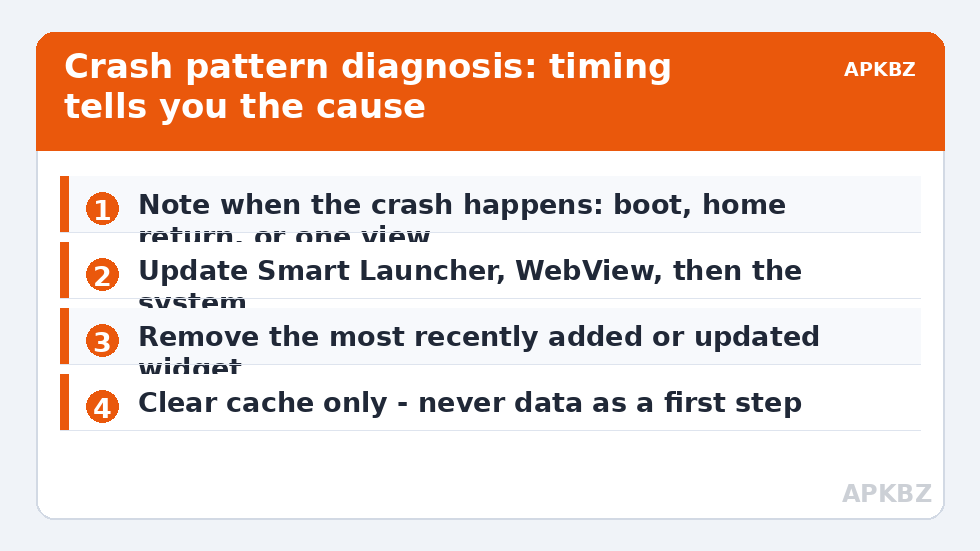
When does it stop? The timing is the diagnosis.
- Crashes right after boot or unlock — usually a widget that fails to render or a wallpaper that fails to load. See also fixing home screen freezes when unlocking with a fingerprint.
- Crashes when returning home from a heavy app — the launcher was killed in the background and the “crash” is a failed or half-finished restart; this overlaps with redraw lag when returning to the home screen.
- Crashes when opening the app drawer, search, or a specific page — a bad entry in that view: a corrupt icon, an app with a malformed label, or a damaged Smart Launcher database.
- Random crashes all day, including in other apps — stop troubleshooting the launcher. That pattern means system trouble: failing storage, a bad system update, or overheating.
If Android offers it, tap “App info” on the crash dialog rather than just dismissing it — the info screen tells you the exact app and version, which matters because a crash in the system launcher (One UI Home, MIUI System Launcher) that Android then recovers by switching defaults is a different problem from Smart Launcher itself crashing.
Fix 1: update everything, in the right order
Stale components are the most boring and most common cause. Update Smart Launcher from the Play Store first. Then update Android System WebView and the Google app — launchers embed web content and search components, and a mismatched WebView is a classic source of sudden, patternless stops. Finally, check for an OEM system update (Settings > About phone > Software update on One UI; Settings > About phone > HyperOS/MIUI version on Xiaomi; Settings > About device > Software update on ColorOS). If the crashes began immediately after a system patch, you may be looking at the lock-out pattern covered in resolving Smart Launcher feature lock outs after an Android system patch rather than an ordinary bug.
Treat these numbers as a starting point: apply them in Smart Launcher 6 under Settings → Home screen → Grid, use the layout for a day, then nudge one value at a time — your wallpaper, widget sizes and one-handed reach all shift what feels right.
Fix 2: remove the newest widget
Widgets run inside the launcher’s process. A buggy widget update can therefore crash the launcher in a loop that looks exactly like a launcher bug. If the crashing started within a day of adding or updating a widget, remove the most recent one first — long-press it on the home screen and remove it — then use the phone normally for a few hours. The full method for isolating a hostile widget, including the boot-time variant, is in how to troubleshoot incompatible widgets blocking launcher startup. Do not skip this step because the widget “worked fine last week”: widget updates ship silently, and last week is precisely the timeframe incriminating them.
Fix 3: clear cache — never data — as the first reset
Go to Settings > Apps > Smart Launcher > Storage and tap Clear cache. This deletes thumbnails, icon renders, and temporary files; your pages, categories, and gesture assignments are untouched. The distinction between cache and data, and what each one costs you, is important enough to have its own guide: how to clear Smart Launcher 6 cache safely without losing custom layouts. Cache clearing fixes a surprising share of crash loops because the damaged item is so often a cached icon render or a stale preview image. “Clear data” is a different weapon: it resets Smart Launcher to first-run state. Keep it in reserve for step five.
Fix 4: stop the system from killing it
If the “crash” is actually a kill — the home screen vanishing and reloading rather than showing an error dialog — the cure is exemption, not repair. Set Smart Launcher to Unrestricted under Settings > Apps > Smart Launcher > Battery, and then apply your OEM’s second layer: MIUI/HyperOS also needs Autostart enabled and the padlock in Recents; ColorOS needs the Startup Manager entry; One UI needs the app removed from Sleeping apps. There is a trade-off to state plainly: an unrestricted launcher can, in principle, use background time freely. A launcher that cannot stay alive is useless, though, and Smart Launcher’s background appetite once resident is small — the exemption is the right call for software whose entire job is to be running when you press Home.
Fix 5: rebuild the database, with a backup first
If crashes survive all of the above and cluster around one view (drawer, search, one page), suspect the app’s own database. Before any reset: Smart Launcher > Settings > Backup and restore — export a backup to a folder outside the app, ideally copied off the phone. Only then use Settings > Apps > Smart Launcher > Storage > Clear data, reopen Smart Launcher, set it as default if prompted, and restore the backup. If the crashing returns after the restore, the corruption is inside the backup: reset again and rebuild manually, restoring selectively if the app offers it. Painful, but it isolates whether you are fighting damaged data or damaged code.
Verify, and know when to stop
After each fix, use the phone through one full charge cycle or at least several hours of normal use that includes the action which used to trigger the crash. A launcher that survives a day of your real routine is fixed; one that survives ten minutes of poking is not yet proven. If crashes continue in other apps too, back up the phone and consider a factory reset or a service visit — at that point the launcher is a witness, not a suspect. More launcher-specific repairs live in the Fixes & Battery section.
Reading the crash log like an engineer
If the pattern stays ambiguous, Android keeps receipts. After a crash, Settings > Apps > Smart Launcher > App info sometimes shows the last crash context, and the Play Store’s app page lets you send feedback with a system log attached — the most useful thing you can do if the fault turns out to be a genuine Smart Launcher bug, because a log tells the developer which component faulted (widget host, database, renderer) instead of your having to guess. One more log-adjacent habit separates good diagnoses from folklore: change one thing, then write down the date. Crash faults are intermittent, and “it hasn’t crashed since Tuesday, when I removed the weather widget” is evidence; “I changed six settings and it seems better” is a story you will have to re-investigate in a month.
Frequently Asked Questions
What is the difference between a crash and the launcher being killed?
A crash shows an error dialog (“Smart Launcher has stopped”) and means the process faulted. A kill shows no dialog — the home screen simply reloads when you return to it. Kills are caused by OEM battery management and are fixed with exemptions; crashes are caused by bad data, bad widgets, or bugs.
Will clearing the cache delete my home screen layout?
No. Clear cache removes thumbnails and temporary renders only. Clear data is the destructive option — it resets the app to first-run state — so export a Smart Launcher backup before ever using it.
My launcher crashes only after rebooting. What should I check?
That pattern points at something loaded during startup: a widget that renders at boot, a live wallpaper, or a storage permission that is granted late. Remove the most recent widget first, and check whether your icons and pages live on an SD card adopted as internal storage, which mounts slowly.
Could a bad icon pack crash the launcher?
Yes, rarely — a pack with malformed resources can fault the renderer when the drawer or a page tries to draw the affected icon. Switching back to the default icon set for a day is a fast way to eliminate the pack as a suspect.
When is it time to stop fixing and reset the phone?
When other apps crash too, when the phone reboots spontaneously, or when crashes survive a clean launcher reinstall with no backup restored. At that point you are looking at system corruption or failing hardware, and further launcher tweaks are wasted effort.


