
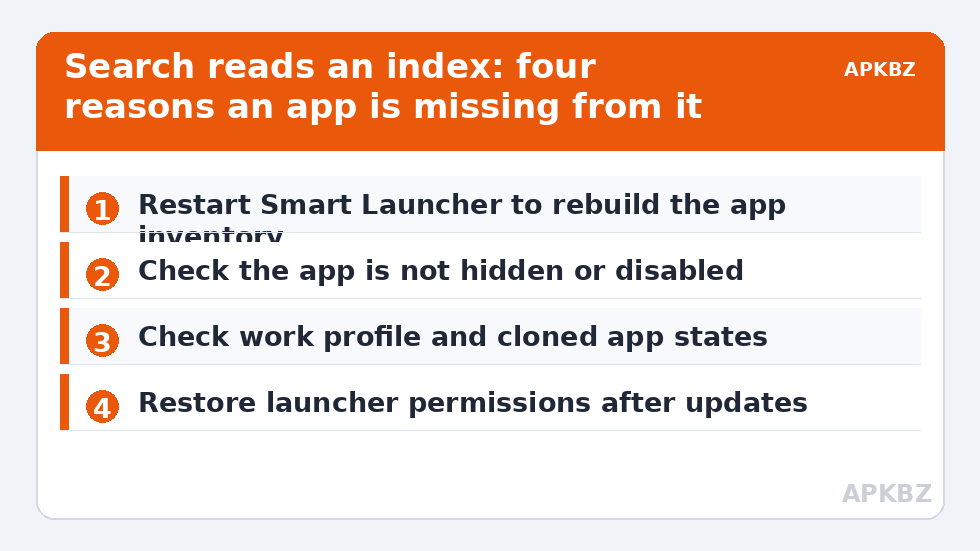
When you have to fix a Smart Search bar not finding installed apps, the fault is almost never the search box — it is the index behind it. Smart Launcher’s search reads from an app inventory that Android maintains and that the launcher refreshes as apps install, update, and move between profiles. When a specific app goes missing from results while sitting plainly in the drawer, one of four things has happened: the inventory is stale, the app is in a place search does not look (a work profile, a hidden list, a disabled state), a permission the inventory depends on was revoked, or the app is not actually installed for the current user. Work through them in that order; the first fix takes under a minute.
Test the boundaries first
Three quick checks that split the problem space before any settings are touched:
- Can the drawer find it? If the app is missing from the drawer too, this is not a search problem — the app is hidden, disabled, or installed under another profile. Stop here and check those states instead.
- Is it one app or all recent apps? One missing app suggests its entry is corrupt or special (cloned, work-profile, system app). Every app installed in the last few days missing suggests a stale index.
- Does search find other things? If contacts, settings shortcuts, or older apps still appear, the search engine works and only the app inventory is incomplete.
Fix 1: refresh the app inventory
Smart Launcher rebuilds its app list when Android broadcasts install/remove events, but those broadcasts can be missed — typically when the launcher itself was dead at the moment an app updated, which ties this fault to the survivability issues in preventing OEM battery savers from killing the launcher. Force a refresh: open the app drawer, pull to refresh if your build supports it, or simply restart Smart Launcher from its settings (Smart Launcher settings > Advanced > Restart Smart Launcher, where available). A full phone reboot achieves the same rebuild less surgically. Then search again. A surprising share of “missing app” reports die at this step because the index, not the app, was the stale party.
Treat these numbers as a starting point: apply them in Smart Launcher 6 under Settings → Home screen → Grid, use the layout for a day, then nudge one value at a time — your wallpaper, widget sizes and one-handed reach all shift what feels right.
Fix 2: check the states that hide apps from search
Search deliberately excludes some apps, and each exclusion looks like a bug until you recognise it:
- Hidden apps. If you hid the app from the drawer (long-press > Hide, or via Smart Launcher’s hidden apps list), many builds also exclude it from search results — that is the feature working, arguably too well. Unhide it if you want it searchable.
- Disabled apps. Settings > Apps will show whether the app is Disabled. Disabled apps vanish from both drawer and search, and OEM “freeze” features disable apps silently — a frequent culprit after using a phone-manager cleanup.
- Category organisation. An app dropped into an unexpected category can feel missing when you browse, but it should still be searchable — if browsing is your real problem rather than search, re-check its category assignment instead.
Fix 3: work profiles, clones, and private spaces
Apps installed in a work profile, an OEM dual-apps clone, or a private/secure folder live under a different user ID. Smart Launcher’s main search indexes the personal profile; the work copy of an app may appear with a briefcase badge, appear only when the profile is active, or not appear at all depending on build and policy — and a paused work profile (many people schedule this overnight) hides its apps entirely. If the missing app is your work Outlook or a cloned WhatsApp, this is almost certainly your answer. The same multi-user reality affects other launcher behaviour, including the defaults discussed in setting Smart Launcher 6 as the default launcher permanently: verify which profile you are searching from before concluding anything is broken.
Fix 4: permissions and system apps
Two rarer causes. First, some builds rely on the launcher holding its storage or app-list access to maintain the inventory; after a system update, permissions can be silently reset — the broader pattern is documented in feature lock outs after an Android system patch. Open Settings > Apps > Smart Launcher > Permissions and restore anything that was revoked without your knowledge. Second, pre-installed system apps that were “uninstalled for current user” via app settings linger in a half-state: absent from search, still technically present. Settings > Apps > See all apps will show their true state; re-enable or reinstall from the Play Store to make them searchable again.
Fix 5: rebuild via cache, with data as the last resort
If the inventory is still wrong after the above, clear the launcher’s cache (Settings > Apps > Smart Launcher > Storage > Clear cache) — this forces the icon and inventory caches to rebuild without touching your layout, per the safety rules in clearing Smart Launcher cache safely without losing layouts. If even that fails, export a backup from Smart Launcher’s Backup and restore settings first, then consider clearing data as the final rebuild. Judge success by the original failing query: type the exact name that failed and confirm the app appears, launches, and keeps appearing after the next reboot. The broader fault family lives in the Fixes & Battery hub.
Search ranking: present but buried
A quieter variant of this complaint deserves its own fix: the app is in the results, but below the fold — outranked by contacts, web suggestions, and similarly named apps, so the owner concludes it is missing. Smart Launcher’s search learns from launches: open the app from wherever it ranks a few times, and its position climbs as the usage model updates. You can also reduce the noise floor — if your search settings include result types you never use (web suggestions are the usual suspect), trimming them shortens the list the real result competes in. And check your exact query once: searching a colloquial name (“Gallery”) for an app whose label is a brand name (“Xiaomi Gallery” or “Photos”) finds it by substring only if the label matches. The drawer’s alphabetical list settles arguments about what the app is actually called. Buried is a ranking problem, missing is an indexing problem; they feel identical from the search box and have nothing else in common.
Frequently Asked Questions
Why does search find old apps but not the one I installed yesterday?
The launcher’s app inventory missed the install event — usually because the launcher process was not running when the install completed. Restarting Smart Launcher or rebooting the phone forces an inventory rebuild and the app appears.
My hidden app does not show in search. Is that a bug?
Generally it is intended behaviour: hidden apps are excluded from search as well as the drawer in most builds, so they cannot be discovered by typing. Unhide the app if you want it searchable, or open it from the hidden apps list.
Why can’t search find my work apps?
Work-profile apps live under a separate user profile. Depending on the build, they may only be searchable while the profile is active and unlocked, and they vanish entirely when the profile is paused or off. This is Android’s profile separation working as designed.
Could a system update break launcher search?
Yes — updates can reset the launcher’s permissions or invalidate its inventory, which shows up as missing apps or missing result types. Re-check Smart Launcher’s permissions after any OS update and restart the launcher once.
The app is missing from the drawer too. Where do I look?
That is no longer a search fault. Check in Settings > Apps whether the app is disabled, frozen by an OEM manager, installed only in a work profile, or was uninstalled for the current user — each state removes it from both drawer and search.


