Most icon packs look fine in their preview screenshots and then fall apart on a real home screen: half the icons sit inside neat rounded squares, the rest float as raw logos on mismatched backgrounds. That inconsistency is almost never the pack author’s fault. It happens because a launcher can only unify icons when it understands what kind of pack it is holding. Learning how to apply adaptive icon packs in Smart Launcher 6 properly starts with knowing what “adaptive” actually means at the Android system level, because Smart Launcher builds its whole icon pipeline around that model.
What makes an icon pack “adaptive” in the first place
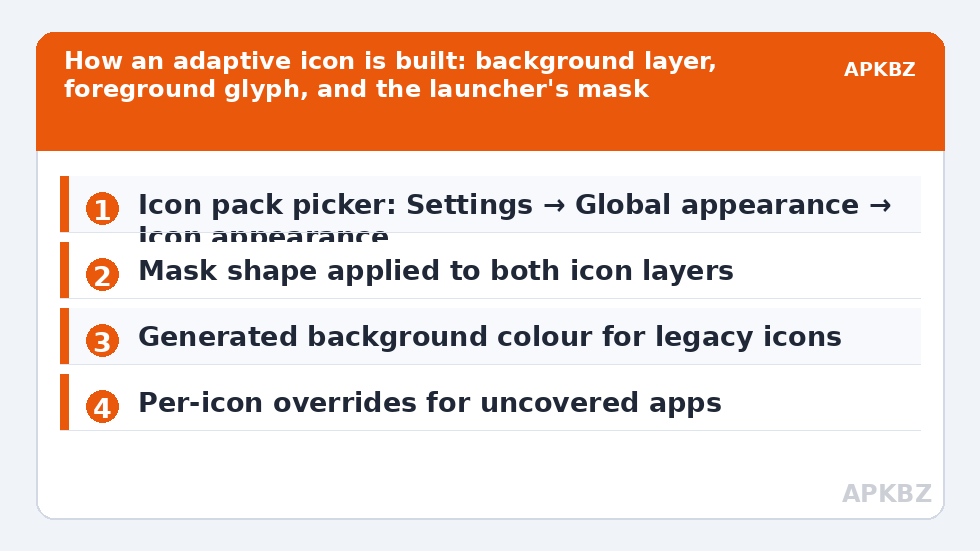
Since Android 8.0, an app’s launcher icon is not a single flat picture. An adaptive icon is an XML resource containing two separate layers: a background (a solid colour, gradient, or pattern) and a foreground (the glyph or logo), drawn on a 108dp canvas of which only the central 72dp circle is guaranteed to be visible. The launcher supplies a mask — circle, squircle, teardrop, rounded square — and clips both layers to that shape. Because the layers are separate, the same icon can be re-masked into any shape without distortion, and the system can animate it with subtle parallax effects.
An icon pack extends this idea across your whole app library. A well-built modern pack ships, for each app, a foreground drawable and a background drawable (or a full adaptive-icon XML), plus two index files: appfilter.xml, which maps app component names to icon resources, and drawable.xml, which lists everything for the pack’s own preview. Older packs ship only flattened PNGs. Smart Launcher 6 handles both, but it treats them differently, and that difference is exactly what decides whether your home screen looks unified.
Adaptive packs vs legacy packs: how Smart Launcher treats each
| Pack type | What it contains | How Smart Launcher 6 renders it |
|---|---|---|
| Native adaptive pack | Separate foreground/background layers per icon | Applies your chosen mask shape to both layers; icons stay sharp at any size and shape |
| Legacy flat pack | Single flattened PNG per icon | Places the PNG as the foreground and generates a background behind it using the pack’s icon-back colour or a sampled colour |
| Pack with partial coverage | Adaptive icons for popular apps only | Covered apps use the pack; uncovered apps fall back to their own system adaptive icons, masked consistently |
| Themed-icon-ready pack | Monochrome foreground layer for Android 13+ themed icons | Can be recoloured by the system wallpaper palette when themed icons are enabled |
The practical takeaway: a pack labelled “adaptive” with a few thousand icons will usually look better than a legacy pack with ten thousand, because uncovered apps still blend in through consistent masking rather than sticking out as unmasked logos.
Step by step: apply adaptive icon packs in Smart Launcher 6
- Install the pack first. Download it from the Play Store or F-Droid and let it sit as a normal app. You do not open it directly for the initial apply; Smart Launcher reads its resources from outside.
- Open Smart Launcher settings. Long-press an empty area of the home screen and tap the settings entry, then go to Global appearance and Icon appearance. Exact labels shift slightly between Smart Launcher point releases, but the icon pack picker has lived under Icon appearance for the whole 6.x line.
- Choose “Icon pack”. Smart Launcher scans installed packages for icon-pack intent filters and lists every pack it finds, including packs built for other launchers, since the appfilter format is shared.
- Select your pack and confirm. The home screen and app drawer redraw with the new set. Give it a few seconds on a large library; each icon is being re-masked and cached.
- Set the icon shape. Back in Icon appearance, pick the mask shape (this is covered in depth in our guide to custom icon shapes). With a native adaptive pack, changing shape re-clips the real layers, so nothing stretches.
- Walk your categories and dock. Check the automatically sorted category pages and any folder covers. If one or two apps look wrong, fix them individually rather than changing packs — see the guide on customizing individual app icons.
Treat these numbers as a starting point: apply them in Smart Launcher 6 under Settings → Home screen → Grid, use the layout for a day, then nudge one value at a time — your wallpaper, widget sizes and one-handed reach all shift what feels right.
Settings worth adjusting right after applying
Three settings decide most of the final look. First, icon size: adaptive layers are drawn for the 72dp safe zone, so very large icon sizes expose more background and can make glyphs look small; a modest size increase usually looks better than maximum. Second, the generated-background colour for legacy icons: when a pack leaves some apps uncovered, Smart Launcher can place their system icons on a plain background derived from the pack’s style, and setting that colour deliberately beats letting it default to white. Third, labels: a fresh pack is the right moment to decide whether you want app names shown, because dense text under bold glyph icons is what makes many setups look busy (the Icon Customization category collects these follow-up tweaks).
When the result still looks inconsistent
If several icons appear as logos floating on white squares, the pack is legacy and Smart Launcher is generating backgrounds it cannot colour-match; a pack with a defined icon-back colour fixes most of it. If one specific app reverts to its stock icon after every update, the app’s component name changed — packs map icons to component names, so a renamed activity breaks the mapping until the pack updates. And if a calendar icon shows the wrong date, the pack lacks a dynamic calendar entry; Smart Launcher supports dynamic calendar icons only when the pack declares them. None of these are reasons to abandon a good pack; they are the normal maintenance edges of the adaptive system.
The 60-second audit before you commit to a pack
Before applying any pack to your real setup, spend a minute judging it the way the launcher will. First, scroll the pack’s own icon list and find your five most-used apps: if two or more are missing, expect visible fallbacks and decide whether you accept that. Second, look at how the pack draws its generic icons — the mail, camera, settings, and folder glyphs — because those shapes appear everywhere, including on folder covers and in categories, and they define the pack’s personality more than any single branded icon. Third, check the pack’s last update date and its stated icon count; adaptive packs are living products, and a pack untouched for three years will miss every app released since. Finally, remember that applying a pack in Smart Launcher is non-destructive: your layout, widgets, and per-icon edits stay in place, so auditioning a pack costs you nothing but the tap to switch back. Judge packs by drawing quality and coverage of your library, not by download counts, which mostly measure marketing age.
Frequently Asked Questions
Do icon packs made for Nova or other launchers work in Smart Launcher 6?
Yes, in almost all cases. Icon packs declare support through a standard intent and share the appfilter.xml mapping format, so Smart Launcher can read packs regardless of which launcher they were marketed for. A small number of packs gate extra features, like dynamic calendars, behind their own dashboard app, but the icons themselves apply normally.
Will an adaptive icon pack slow down my home screen?
No meaningful slowdown occurs after the first apply. Smart Launcher renders and caches each masked icon once; scrolling afterwards uses the cached bitmaps. The brief redraw pause when you first apply or change shape is the caching happening, not ongoing cost.
Why do some apps keep their original icons after I apply a pack?
Because the pack does not include a mapping for that app’s component name. Uncovered apps fall back to their own system adaptive icons, which Smart Launcher still masks to your chosen shape, so they blend in rather than clash. Requesting the app from the pack author or assigning a similar icon manually are the two fixes.
Can I use different icon packs for the drawer and the home screen?
Smart Launcher applies one pack globally; there is no separate drawer pack. The flexibility it offers instead is per-icon editing, so you can keep one pack as the base and override specific icons anywhere, including in the drawer categories and on folder covers.
Does applying a pack change the icons inside apps or in Settings?
No. A launcher icon pack only changes how icons are drawn by the launcher itself: home screen, drawer, categories, and folders. The recents screen, notifications, and system Settings continue to show each app’s stock icon, because those surfaces are rendered by Android, not by Smart Launcher.