The icon shape setting looks like the frivolous one — a row of cute silhouettes in a settings page. It is actually the most consequential choice in icon customisation, because the shape is a mask applied to every icon you own, and masks decide how much of each artist’s work survives. Creating custom icon shapes — circle, squircle, teardrop and friends — in settings comes down to the contract between three parties: the adaptive icon’s layers, drawn on a 108dp canvas; the mask, which keeps only part of that canvas; and the flat legacy icons that never signed the launcher contract at all. Choose the shape that honours your library’s mix, and the whole screen coheres. Choose against it, and no pack can save you.
Custom icon shapes — squircle, teardrop and more: the launcher geometry
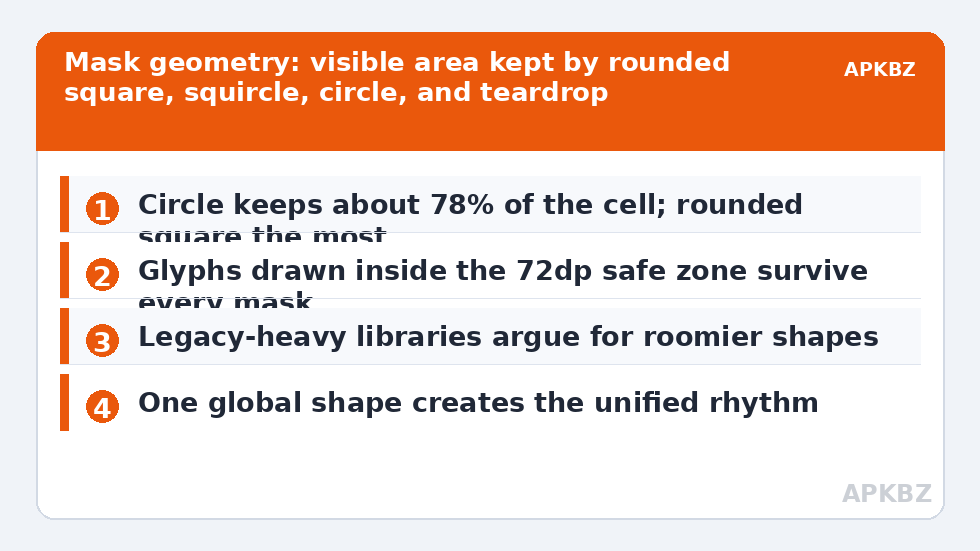
Every mask inscribes a visible region inside the icon’s square cell. A rounded square keeps the most area — north of 90% of the cell at typical corner radii. A squircle (a square with mathematically smoothed corners, not just rounded ones) keeps slightly less but follows the curve language of modern phone hardware. A circle keeps about 78% — the corners are sacrificed entirely. A teardrop keeps similar area to the circle but distributes it asymmetrically, with one corner kept and the opposite one pinched. These numbers explain everyday mysteries: why the same icon looks “smaller” as a circle ( covered in size, shape and shadow tuning), why full-bleed photo icons lose their corners’ subjects, and why glyph artists design for the centre. The adaptive system’s safe zone (the central 72dp of 108) exists precisely so a well-drawn glyph survives every standard mask; icons that break under shape changes are icons whose artists drew outside the safe zone and got away with it under one forgiving OEM mask.
| Shape | Visible area | Personality | Best library fit |
|---|---|---|---|
| Rounded square | Highest | Practical, gallery-like | Mixed legacy and adaptive icons; full-bleed art |
| Squircle | High | Modern, hardware-matched | The default-safe choice for most libraries |
| Circle | ~78% | Soft, classic, Pixel-flavoured | Glyph-centred packs; monochrome sets |
| Teardrop | ~78%, asymmetric | Playful, directional | Curated sets where icons are glyphs, not logos |
| Square | 100% | Brutalist, maximal | Artwork-first setups; exposes every flaw |
Setting and auditioning shapes in Smart Launcher 6
The shape picker lives in Smart Launcher’s icon appearance settings, alongside the pack selector (the apply flow is walked through in applying adaptive icon packs). The audition method matters more than the location: do not judge from the settings preview, which shows a few icons large. Apply a candidate shape, then inspect your three hardest surfaces — the fullest category page, a folder-dense home page, and search results — at arm’s length. You are looking for two failures: clipped content (glyphs or photos losing meaningful edges, the family of problems in masking glitch fixes) and personality clashes (a shape whose character fights the wallpaper and widgets, like a playful teardrop under a severe corporate widget stack). Give the shape a day if the first impression is neutral; shape is the setting the eye adapts to most, and snap judgements here are notoriously unreliable.
Treat these numbers as a starting point: apply them in Smart Launcher 6 under Settings → Home screen → Grid, use the layout for a day, then nudge one value at a time — your wallpaper, widget sizes and one-handed reach all shift what feels right.
Shapes and the icons that resist them
Three icon populations respond differently, and knowing yours predicts the outcome. True adaptive icons take any shape gracefully — that is their entire design brief. Legacy flat icons get fitted or backplated by Smart Launcher: inside a circle, a square legacy logo is either shrunk to fit (small icon, big margin) or given a generated background and then masked; both are survivable, neither is beautiful, and a library heavy with legacy icons argues for the roomier shapes. Photographic and full-bleed icons (your custom PNGs, some camera/gallery apps) lose their corners to circles and teardrops; if the subject sits central, fine, if not, re-crop the source with more padding rather than blaming the shape. Read your library’s census before choosing: mostly adaptive → any shape you love; mostly legacy → rounded square or squircle mercy; photo-heavy → keep corners, or re-pad the photos.
One shape, everywhere: why the global rule is a feature
New customisers often ask to vary shape per app or per page. Smart Launcher keeps shape global, and theming history says that is wisdom, not stinginess: every memorable icon system — iOS’s squircle era, Samsung’s rounded square, the Pixel circle — is memorable because it is a single silhouette repeated a hundred times, a rhythm the eye reads as design. Mixed shapes read as accidents. If one app’s art truly cannot live in your chosen shape, the sanctioned escape is replacing that icon with art that can, not punching a hole in the rhythm. More shape-adjacent tuning lives throughout the Icon Customization collection.
Reading a pack’s intentions: padding confesses everything
You can reverse-engineer which shape a pack was drawn for by studying its margins. Apply the pack, set the shape to square (maximum visible area), and look at the backgrounds: if glyphs sit in a sea of background with generous even margins, the artist padded for a tighter crop — this pack expects a circle or teardrop and will look better cropped, its glyphs swelling to proper prominence. If glyphs already crowd the square’s edges, the artist drew for maximum area, and cropping will amputate their work. Background colour behaviour confesses too: packs whose backgrounds are subtle gradients designed to be clipped look muddy unmasked, while flat-colour packs are shape-agnostic. Spend sixty seconds on this reading before auditioning shapes and your shortlist writes itself — one shape the pack was born for, one compromise shape, and the rest eliminated without a day of live-testing each. It is the closest thing icon customisation has to reading the label before cooking.
Revisit shape when the library changes, not when fashion does
Your library is not static, and the right shape can drift. A phone that began with the manufacturer’s legacy-heavy app set may, two years later, be populated almost entirely by modern adaptive icons from the Play Store — at which point the merciful rounded square you chose for the old library’s sake can give way to the circle you always preferred, because the population that needed mercy has retired. The trigger for re-auditioning shape is a census change: a new phone, a pack switch, or a season of app replacements. Absent those, leave shape alone; it is the background rhythm of the screen, and rhythm changes should be rare, deliberate events rather than weekly whims, or the eye never gets the stability that makes a shape feel like design.
Frequently Asked Questions
What exactly is a squircle, and how is it different from a rounded square?
A squircle is a square whose corners follow a continuous superellipse curve — the transition from edge to corner is gradual rather than a circular arc of fixed radius. Visually it looks smoother and more “designed” than a rounded square, and it matches the corner geometry of most modern phone bodies and system UI, which is why it reads as native almost everywhere.
Why do some icons get cut off when I choose the circle shape?
Because their artwork was drawn outside the adaptive safe zone, expecting a roomier mask. The circle keeps only about 78% of the cell, sacrificing all four corners. Well-drawn adaptive icons keep glyphs central and survive; full-bleed or badly padded art loses edges. Either pick a roomier shape or replace the offending icons individually.
Which icon shape is best for battery or performance?
Shape has no meaningful performance impact — masking happens once when icons are rendered and cached. Choose on looks and library fit. The only shape-adjacent performance note is that changing shapes triggers a one-time re-render of the icon cache, which is a brief pause, not an ongoing cost.
Can different apps have different icon shapes in Smart Launcher?
No, and that uniformity is the point. The mask is a global property of the icon system in Smart Launcher, as on iOS and stock Android launchers. Per-app expression happens through which icon you assign to the app, not through silhouette variety, which reads as disorder rather than personality.
Do icon packs include their own recommended shape?
Some packs are drawn with a shape in mind — their glyphs’ padding and backgrounds assume, say, a squircle — and their listings sometimes say so. When a pack recommends a shape, start there: the artist tuned margins for it. You can still override, but expect the pack to look its best at home in its intended mask.