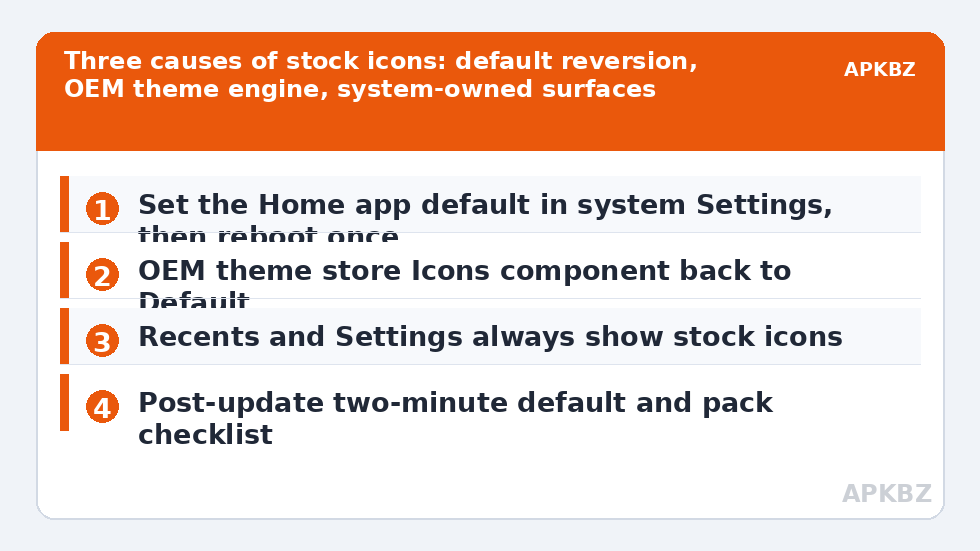
To fix the default launcher forcing stock OEM icons, start by recognising the complaint — it usually arrives worded like this: “I set Smart Launcher as default and applied my pack, but the phone keeps showing the stock icons.” Underneath that sentence hide three different rebellions. Sometimes the launcher itself is not truly default, and the phone keeps returning to the OEM home app with its stock look. Sometimes Smart Launcher is default, but an OEM theme engine is imposing the manufacturer’s icon shapes or artwork at a level the launcher cannot override. And sometimes the pack is applied inside Smart Launcher, but the user is looking at a surface — recents, Settings, share sheet — that no launcher controls. Fixing a default launcher forcing stock OEM icons starts with finding which rebellion you have, because each has a different capital city to negotiate with.
Case 1: the default launcher will not stay default
On several OEM skins — MIUI/HyperOS and ColorOS are the repeat offenders, with Samsung’s One UI generally better behaved — the system periodically reasserts its own home app, or third-party launchers lose default status after updates, restarts, or gesture-navigation changes. Symptoms: you press Home and land on the stock launcher; your Smart Launcher setup “disappears” and returns at random. The remedy stack: set the default explicitly in system Settings (Apps → Default apps → Home app — exact paths vary by skin) rather than from a launcher prompt; disable the OEM’s habit of resetting defaults where a toggle exists; keep the stock launcher’s data intact (disabling or freezing the OEM launcher on skinned phones causes gesture and recents breakage that far outweighs the icon grievance); and after major system updates, re-check the default once. If the default holds for a week, it holds. Note that on MIUI-family skins, some builds tie full-screen gesture navigation to the stock launcher — a platform restriction, not a Smart Launcher fault — and using button navigation is the documented workaround when that applies.
Case 2: the OEM theme engine overrides icons inside Smart Launcher
This subtler case: Smart Launcher is default, your pack is applied, yet certain apps — usually the OEM’s own apps — render with stock artwork or a forced OEM shape. What is happening: Samsung’s Galaxy Themes, Xiaomi’s Themes, and similar engines can apply an icon treatment at the app-resource level, and some OEM apps ship icons designed to be drawn by the system with the OEM mask regardless of launcher preference. A launcher draws what the app supplies plus what the pack maps; where an OEM app supplies a single flattened icon tied to the system theme, the pack may lack a mapping precisely because the app presents a non-standard component. Options that work: per-icon override for the stubborn apps (customize them individually), reverting the OEM theme’s icon component to the skin’s default icon set (in Galaxy Themes/Themes app, set Icons to “Default” while keeping any wallpaper theme you like), and choosing packs with explicit coverage for your OEM’s app suite — the big maintained packs treat Samsung/Xiaomi system apps as first-class citizens.
Case 3: you are looking at a surface the launcher does not own
Keep this checklist taped to the diagnosis: Recents/multitasking cards, the Settings app list, the share sheet, notification icons, and the lock screen are drawn by Android and the OEM, with stock app icons, always, on every phone, with every launcher. Users “lose” their theme there and conclude the pack failed. It did not; those surfaces were never in scope, for any pack, as the rendering-scope notes across this Icon Customization library repeat. Judge your setup only in the launcher’s own territory: home screen, drawer, categories, search.
| Symptom | Case | Decisive test |
|---|---|---|
| Home button lands on stock launcher | Default not holding | Settings → Default apps → Home app shows the OEM launcher |
| Right launcher, some OEM apps show stock art | Theme engine / unmapped OEM apps | Set OEM theme icons to Default; check if a pack update adds coverage |
| Stock icons in recents and Settings only | Not a fault | Same apps are themed correctly on home screen and drawer |
| Pack reverts after every reboot | Default or data issue | Check default home app and that the pack app is not on restricted/SD storage |
Treat these numbers as a starting point: apply them in Smart Launcher 6 under Settings → Home screen → Grid, use the layout for a day, then nudge one value at a time — your wallpaper, widget sizes and one-handed reach all shift what feels right.
Fix a default launcher forcing stock OEM icons: the clean-slate procedure
- Set the OEM theme app’s Icons component back to the skin’s Default set (leave wallpaper/other theme parts as you like).
- Confirm Smart Launcher as Home app in system Default apps settings, then restart the phone once — several skins only fully honour a new default after a clean boot.
- Inside Smart Launcher, re-apply your pack from Icon appearance so its mappings rebuild against the current app set (the apply flow is detailed in applying adaptive icon packs).
- Audit the drawer: count remaining stock-looking icons. A handful of OEM apps → override individually. Dozens → the pack lacks your skin’s suite; switch to a pack advertising Samsung/Xiaomi/OPPO coverage.
- Re-check after the next system update, the moment defaults and theme engines are most likely to reassert themselves.
If, after all this, a specific OEM app still refuses theming everywhere including the drawer, accept the platform answer: that app is presenting itself in a way packs cannot map, and a custom PNG or generic-glyph override is not a workaround but the designed escape hatch.
Prevention: the two-minute post-update checklist
Since defaults and theme engines reassert themselves at predictable moments, make the cure a ritual instead of an investigation. After any system update, and after any theme-store update, spend two minutes: confirm the Home app default still names Smart Launcher; open the drawer and scan for stock-looking interlopers among your themed icons; confirm your pack still shows as applied in Icon appearance. Most regressions are caught and fixed at this stage in under a minute — re-set the default, or re-apply the pack — before they harden into the feeling that “the phone fights my setup”. Phones with heavy skins are not hostile to customisation; they are merely opinionated, and opinions re-assert on update day. Meet them at the door each time and the argument never escalates.
Frequently Asked Questions
Why does my phone keep switching back to the stock launcher?
Some OEM skins reassert their home app after updates, restarts, or navigation changes. Set Smart Launcher explicitly under Settings → Apps → Default apps → Home app, restart once, and re-check after system updates. On certain MIUI/HyperOS builds, full-screen gestures are also tied to the stock launcher; button navigation is the known workaround there.
Why do Samsung/Xiaomi system apps ignore my icon pack?
Two reasons, often combined: the OEM theme engine applies its own icon treatment, and those apps sometimes present components that packs haven’t mapped. Set the theme store’s Icons component to Default, use a pack with explicit coverage for your manufacturer’s app suite, and override any remaining stubborn apps individually.
Can I disable or uninstall the stock launcher to stop it interfering?
It is strongly discouraged on skinned phones. The stock launcher is often entangled with gesture navigation and the recents screen; disabling it can break core navigation. Leave it installed and unused — an ignored stock launcher does not affect Smart Launcher’s icons once the default is set correctly.
Why do icons in Recents and Settings never match my theme?
Because those surfaces are rendered by Android and the manufacturer, not by your launcher, and they always use stock app icons. No launcher or pack can theme them. Your pack’s jurisdiction is the home screen, drawer, category pages, and search — judge it there.
Does setting Smart Launcher as default affect my icon pack?
Indirectly, yes. Only the default launcher’s home screen is what you see all day, so if the default keeps reverting, you keep seeing the stock launcher’s unthemed icons and it looks like a pack problem. Stabilise the default first; pack issues should be diagnosed only once you are certain which launcher is drawing your screen.