

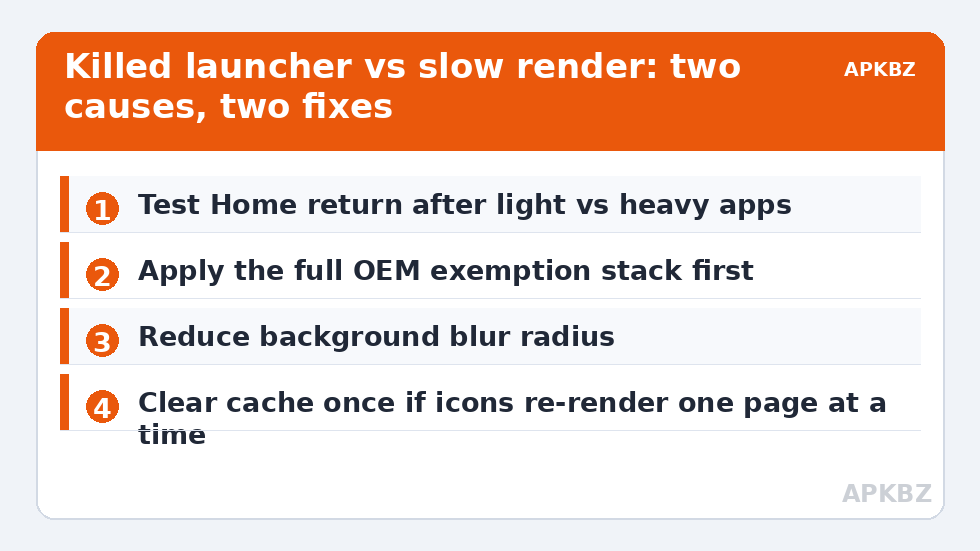
The work needed to fix launcher redraw lag when you return to the home screen starts with a distinction most advice skips: is the launcher redrawing because it was killed while you were away, or is it alive but slow to render? The two look identical — icons popping in late, widgets flashing blank, a half-second of wallpaper-only screen — but one is an OEM battery problem and the other is a rendering load problem, and their fixes barely overlap. Test first: open a light app like Calculator for ten seconds and press Home. Then open a heavy game or the camera for ten minutes and press Home. If only the second trip lags, your launcher is being evicted under memory pressure. If both lag equally, the renderer itself is overloaded.
Cause 1: the launcher was killed in the background
This is the majority case on Xiaomi, Oppo, and Samsung phones. The vendor power manager treats the launcher as an ordinary background app; a heavy game or camera session then triggers a memory sweep, and the launcher pays for its return with a full cold start. The cure is the complete exemption stack for your brand — stock Unrestricted plus MIUI Autostart and Recents lock, Samsung’s Never sleeping apps list, or ColorOS’s Allow background activity — all walked through in how to prevent MIUI, One UI and ColorOS from killing the launcher in the background. Do that before anything below; optimising the rendering of a launcher that is dead on arrival is wasted effort. Note the trade-off once more, because it is the only real cost in this article: an exempted app is trusted in the background. For the app that draws your home screen, that trust is the design assumption Android itself makes — the OEM layer is the deviation.
Cause 2: too much to render, all at once
If the launcher survives but still stutters home, count what it must draw in the first frame: full-screen blur over a busy wallpaper, icon shadows, a large weather widget with an animated radar, a news widget preloading images, and a scrolling dock. Each is cheap; the stack is not, especially on phones whose GPUs are already warm. Reduce in this order, testing after each change:
- Background blur. Real-time blur is the single most expensive common effect because it resamples the wallpaper every frame. Reducing or disabling it is the highest-value change — the topic gets its own guide at disabling unnecessary visual blur animations for maximum speed.
- Animated and data-heavy widgets. Swap animated widgets for static equivalents for a day and compare.
- Icon effects. Shadows and badges are minor, but on very weak GPUs they add up across 30+ icons.
Treat these numbers as a starting point: apply them in Smart Launcher 6 under Settings → Home screen → Grid, use the layout for a day, then nudge one value at a time — your wallpaper, widget sizes and one-handed reach all shift what feels right.
Cause 3: the icon database or cache is stale
After a large app update, an icon-pack change, or a system patch, Smart Launcher may be re-rendering icon art on the fly because its cached renders no longer match. The symptom is specific: the redraw is worst on the page or drawer section you visit first, and better afterwards, because renders are rebuilt once and then cached. The safe fix is Settings > Apps > Smart Launcher > Storage > Clear cache — this deletes only disposable renders, not your layout, and the distinction is spelled out in clearing Smart Launcher cache safely without losing layouts. Expect the first home return after clearing to be slower, as the cache rebuilds; judge it from the second return onwards.
Cause 4: storage pressure and where your apps live
Two under-discussed contributors. First, a phone with under ~10% free storage makes every app slower — flash storage throttles writes, and the launcher writes constantly (widget states, usage stats, icon cache). Second, if Smart Launcher or the apps on your home page are installed on an SD card formatted as adoptable storage, the card’s speed becomes your home screen’s speed; cheap cards are dramatically slower than internal flash. Move the launcher to internal storage if it is not there already, and treat home-screen apps the same way. On low-storage, low-RAM devices this cause merges with the broader picture in reducing Smart Launcher 6 RAM consumption on 3GB and 4GB phones.
Cause 5: animations making honest speed look slow
Sometimes nothing is wrong with the render at all — the system animator duration makes the transition feel like lag. If icons arrive promptly but the page transition drags, reduce animation scale: Smart Launcher’s own transition settings first, and if you want the system-wide version, Developer Options > Window/Transition/Animator duration scale at 0.5x. State the limit plainly: this changes perceived speed, not real speed. If the home screen is genuinely blank for a beat before icons exist, animation scales will not save you — go back to causes 1–4.
Verifying the fix
Reproduce your original failing trip exactly: same heavy app, same duration away, same press of Home. A fixed launcher returns with icons and widgets already composed — at most a single clean fade of the transition animation, no sequential pop-in, no widget placeholders. Then confirm longevity the next day, because OEM managers re-assert themselves on their own schedules; a fix that survives 48 hours of normal use has actually survived. More redraw-adjacent repairs — wallpaper stalls, widget delays, boot behaviour — are gathered in the Fixes & Battery section.
The database and usage-stats angle
One more cause hides inside the launcher itself: its usage statistics. Launchers rank your apps, learn your habits, and pre-render what they predict you will open; that prediction data lives in a database that is read on every home return. On a phone with years of accumulated history and hundreds of installed apps, a bloated or fragmented database adds real milliseconds to the first frame. You cannot defragment it directly, and you should not try — but a backup-reset-restore cycle (export from Smart Launcher’s Backup and restore settings, clear data, restore) rebuilds the database cleanly and is the one circumstance where the nuclear option doubles as optimisation. Reserve it for setups where the redraw persists after kills, blur, and cache have all been eliminated, and where the install is old. Fresh installs do not have this problem, which is itself a diagnostic clue: redraw that grows slowly over a year is data-shaped; redraw that arrives overnight is an update, a widget, or a manager.
Frequently Asked Questions
Why does the redraw only happen after gaming or using the camera?
Games and camera apps consume large amounts of RAM, which triggers the system’s memory management to evict background processes — including your launcher if the OEM battery manager has not exempted it. Light apps do not create enough pressure to evict it, which is why short trips home stay instant.
Is redraw lag a sign my phone is too weak?
Usually not. On modern mid-range hardware, redraw lag is overwhelmingly a process-kill problem, not a power problem. Only after the launcher is confirmed resident and the render load is trimmed does hardware become the plausible limit.
Will clearing the Smart Launcher cache delete my pages and categories?
No. Clear cache deletes rendered icon art and temporary files, which the app rebuilds automatically. Your layout, categories, and gestures live in the app’s data and settings, which only Clear data would touch.
Does reducing animations actually fix lag?
It fixes perceived lag only. If the launcher is being killed or the first frame is genuinely expensive, shorter animations change nothing structural. Use them as a finishing touch after the kill and render-load causes are handled.
Why did the lag start right after a system update?
Updates commonly reset OEM battery whitelists and invalidate icon caches at the same time, producing both a kill problem and a re-render problem on the same day. Re-apply your brand’s exemptions first, then clear the launcher cache once.


