Most icons are portraits. A few are alive: the calendar that shows today’s date, the clock whose hands tell the actual time, the weather icon wearing current conditions. These “live” icons are the oldest special effect in Android theming, and also the most misunderstood, because three unrelated technologies share the nickname. To configure animated live icons on a Smart Launcher setup, you must know which of the three you are looking at — a dynamic system icon, a pack’s animated drawable, or a widget wearing an icon’s clothes — since each is enabled, and breaks, in completely different places.
Configure animated live icons in Smart Launcher: dynamic calendar and clock
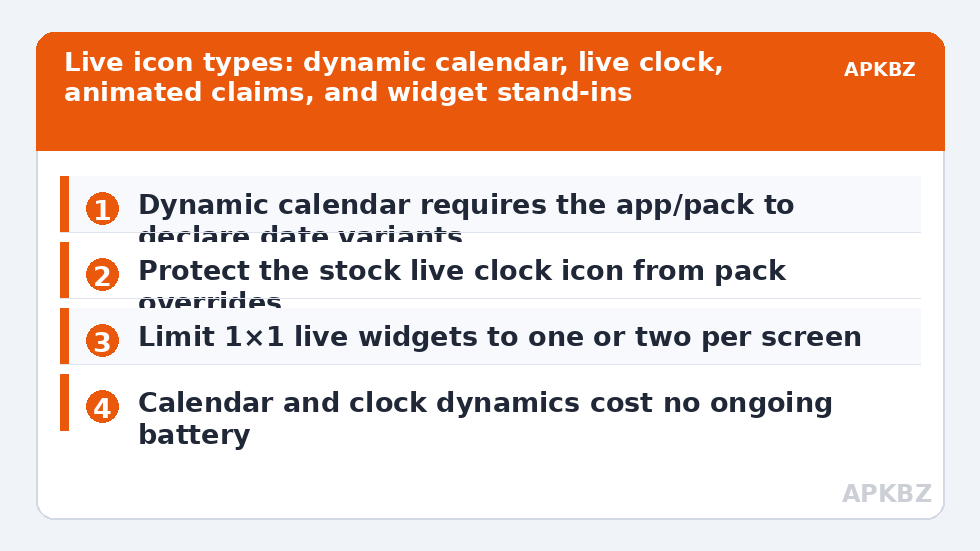
Android supports a narrow, genuine form of live icon. A calendar app can declare a set of 31 date icons (or an adaptive arrangement), and the launcher picks the one matching today. Clock apps similarly provide a live clock drawable whose hands the system renders at the current time, second hand included on some builds. Smart Launcher supports both conventions: if your calendar app and clock app supply the resources, their icons update in the drawer and on the home screen with no pack involved. Icon packs plug into the same mechanism by declaring dynamic calendar entries in their data; when a pack does, its calendar icon shows the date in the pack’s style, and when it doesn’t, you get a static glyph (often showing a fixed date like the 31st, or the pack’s release day — a classic tell). The prerequisite chain is strict: app or pack declares it, launcher honours it, and nothing in between (a restored backup, a stale cache) breaks the mapping.
Type 2: animated drawables and “live” pack gimmicks
Some packs advertise animated icons — a spinning vinyl for the music app, a bouncing ball for games. True per-icon animation on the home screen is rare in mainstream launchers for an honest reason: continuous animation costs battery and compositing time across dozens of visible icons, and Android’s icon model is built around static bitmaps with two narrow dynamic exceptions (calendar and clock, above). What most “animated” marketing means is one of: animated wallpaper behind static icons, an animated icon in the pack’s own preview app only, or a KLWP/KLCK-style live wallpaper component that draws fake icons which are actually wallpaper hotspots. None of these are launcher icon features. If motion matters to you, the reliable route is a live wallpaper or a widget designed for it, not an icon pack promise — a distinction that will save you money and an afternoon.
Type 3: widgets that impersonate icons
The third category is legitimate and useful: 1×1 widgets styled as icons that update their content — a weather widget showing current temperature, a battery widget as a filling ring, a photo widget cycling pictures. On the home screen they sit in icon-sized cells and read as live icons, with one behavioural difference: they are widgets, so they live only where widgets can live (home screen, not the drawer or category pages), they can be slightly slower to respond after unlock, and they survive under Smart Launcher’s widget stacking rules described elsewhere on this site. For a “live” weather or battery readout in icon clothing, this is the correct tool; just place them knowing they are home-screen-only citizens.
| “Live” type | Where it works | Enabled by | Typical failure |
|---|---|---|---|
| Dynamic calendar icon | Home screen, drawer, categories | App/pack declaring date variants | Pack lacks dynamic entry → static date |
| Live clock icon | Home screen, drawer, categories | Clock app’s live drawable | Pack overrides it with a static clock glyph |
| Animated pack icon | Mostly previews/wallpapers | Pack-specific extras | Expecting home-screen animation that the platform doesn’t offer |
| 1×1 widget as icon | Home screen only | Any widget app | Widget host restart delay after reboot |
Treat these numbers as a starting point: apply them in Smart Launcher 6 under Settings → Home screen → Grid, use the layout for a day, then nudge one value at a time — your wallpaper, widget sizes and one-handed reach all shift what feels right.
Configuring what genuinely works, in Smart Launcher 6
- Audit your calendar first. With no pack applied, check whether your calendar icon shows today’s date. If yes, the app supplies dynamic icons — now any pack you apply must declare dynamic calendar support to preserve that behaviour; test after applying, because this is the most common silent regression in the whole Icon Customization topic.
- Protect the clock. If your clock’s live hands matter, consider excluding it from pack theming by setting its icon back to the stock one via per-icon editing after applying the pack.
- Add widget-based “live icons” deliberately. Place at most one or two 1×1 live widgets on a screen; more than that and redraw delays after unlock become visible, plus each is a battery line-item with its own update schedule.
- Respect the battery ledger. Dynamic calendar/clock icons cost effectively nothing (they change on system events). Animated wallpapers and frequently-updating widgets cost continuously. Spend motion where it informs — time, date, weather — not where it merely decorates.
Why some live clocks tick seconds and others sweep minutes
A detail that launches a hundred forum threads: on some phones the live clock icon shows a moving second hand; on others it updates only when the minute turns. Both are correct behaviour for their builds. The live clock drawable is a system-rendered resource, and the refresh cadence is chosen by the platform/OEM — continuous on some, minute-stepped on others to save the redraws. The launcher displays what the resource provides; Smart Launcher cannot add a second hand the resource lacks, and a pack that maps the clock to its own live-clock resource inherits that resource’s cadence instead. Judge liveness by the minute hand being right at a glance, not by chasing the seconds — the status bar and lock screen remain the precision instruments, and the icon is a courtesy glance.
Troubleshooting the frozen date
If your calendar icon is stuck on the wrong date, work the chain: remove the pack (does stock update? if not, the calendar app or a system quirk is at fault), re-apply the pack (does the pack’s calendar follow? if not, the pack lacks dynamic entries — replace just the calendar icon with the stock one, or pick a pack that declares them). A date that is wrong by exactly the same offset daily after midnight suggests the icon cache did not roll over; restarting the launcher or re-applying the pack refreshes it. And if the whole concept delights you, note that Smart Launcher’s own clock widget offers far richer live time display than any icon — icons whisper the time, widgets state it.
Frequently Asked Questions
Why does my calendar icon always show the same date?
Because the icon being drawn is static. Either your calendar app doesn’t supply dynamic date icons, or your icon pack replaced it with a static glyph that lacks dynamic calendar entries. Test with no pack applied: if the stock icon updates, protect it by setting the calendar’s icon back to stock after applying your pack.
Can icons really animate on the home screen in Smart Launcher?
Only within Android’s narrow dynamic model: calendar dates and live clock faces genuinely update. Continuous decorative animation of ordinary icons is not part of the platform’s icon system, so “animated icon packs” usually mean animated previews or wallpaper tricks. For real motion, use a live wallpaper or a widget designed for it.
Do live clock icons drain battery?
Negligibly. The live clock is rendered by the system on the same schedule as other time displays and cached like other icons; it is not a running animation loop. Costs people blame on the clock icon almost always trace to live wallpapers or frequently refreshing widgets nearby.
Why does my pack’s clock icon not move, while the stock one did?
The pack replaced the clock app’s live drawable with its own static glyph. Packs can only preserve the live behaviour if they map the clock to a proper live resource, which most don’t. Restore the stock icon for the clock app through Smart Launcher’s per-icon editor and the moving hands return.
Can I make a weather icon that shows current conditions?
Not as a true icon — weather apps cannot push changing artwork through the icon system. The working alternative is a 1×1 weather widget styled to sit like an icon on your home screen. It updates with real conditions, at the cost of being home-screen-only and dependent on the widget’s own refresh settings.